
To save a recipe from TikTok on iPhone, keep the original video link, use a recipe app’s documented import option, and check the saved ingredients and instructions before cooking. Receply supports TikTok import on iPhone. If an import is incomplete, use the creator’s written recipe or manually enter the details you can verify—do not fill missing quantities with guesses.
A saved video and a usable recipe are different things. The clip may show a technique well while leaving the serving count, an ingredient amount, or part of the method unclear. The goal here is one checked cooking record, not a larger pile of saved links.
1. Keep the source before you try to import
Open the TikTok post and copy its share link. Check the caption and the creator’s profile for a full written recipe, including a linked recipe page. Keep the creator’s name with the link so you can identify the source later.
If there is a complete recipe on the creator’s website, use that page as your written source and keep the video as a technique reference. If the recipe is only in the clip, pause and replay the relevant parts while checking your saved version.
- Complete written recipe: keep its link and use it to check ingredients, quantities and the method.
- Video plus a short caption: expect to review both; the caption alone may not contain the whole recipe.
- Missing details: keep it as an idea to revisit, not a ready-to-cook recipe.
2. Use Receply for a recipe record, not just a bookmark
Receply is Zappira’s recipe app. Its iPhone version history documents TikTok import. The listing also describes website imports and manual recipe entry, so there is a fallback when a particular source does not import cleanly.
Use the TikTok import option in your installed iPhone version with the copied link, then open the resulting recipe for review. This is a documented-feature workflow, not a claim that we tested every video source. If the option is not present or the link fails, use the written-page or manual-entry route below rather than assuming a different sharing button will extract the recipe.
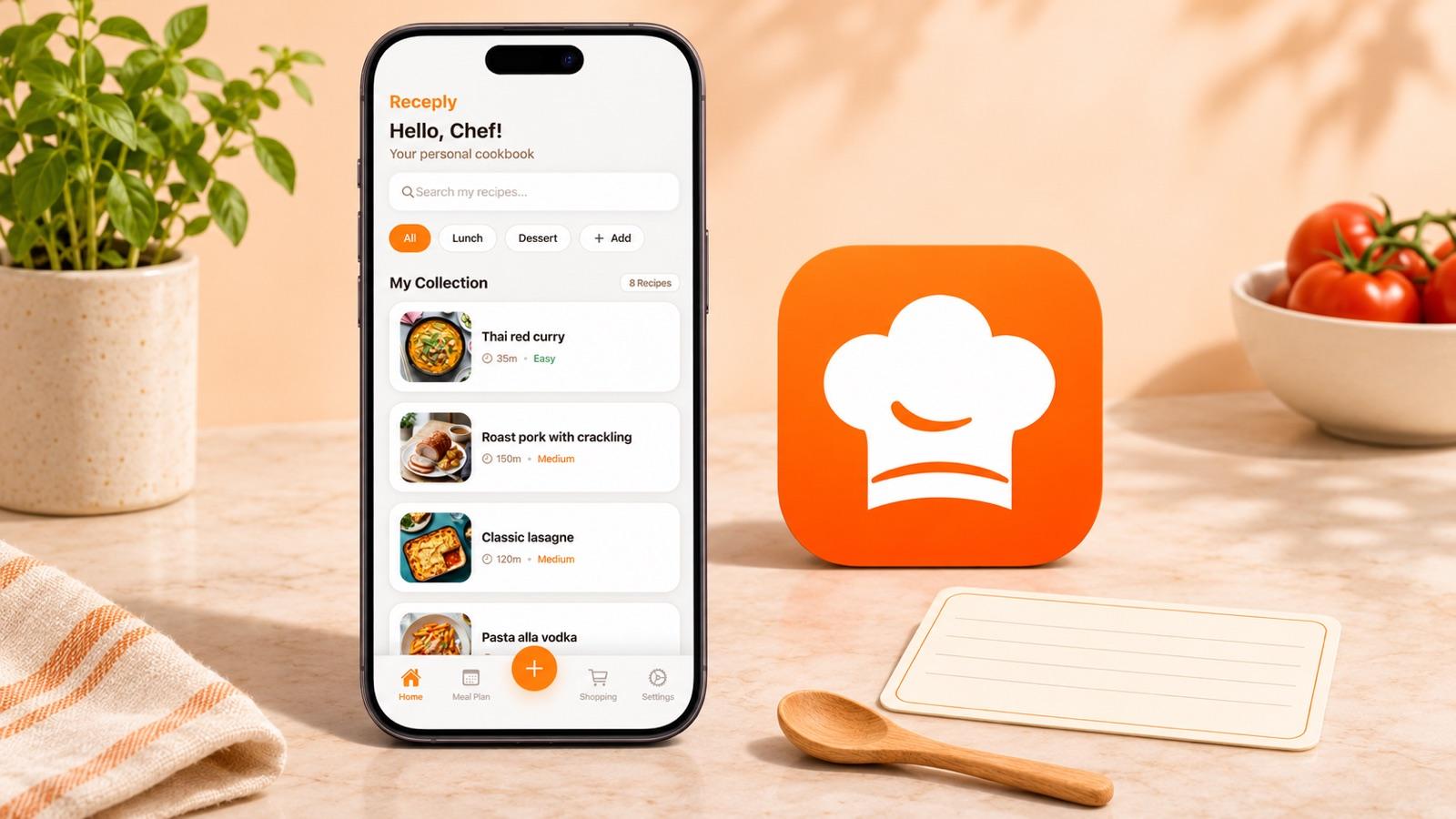
The illustration shows Receply’s actual recipe-collection layout and official icon. It is not a simulated TikTok import screen or an example of a successfully imported video.
Receply is also available on Android, but the TikTok-specific feature evidence used for this guide is its iPhone release history; Android availability alone does not establish identical import controls. Check the current official listing for your device:
3. Check whether the saved recipe is complete
Read the saved instructions once without playing the video. Can you tell what to prepare, how much to use, and what happens next? Then compare them with the source. A title and food photo do not establish that the recipe is complete.
- Ingredients: check each item, amount and unit. An ingredient shown in the video may be absent from the caption.
- Servings: check how many portions the source intends. Do not scale an imported recipe until its original quantities make sense.
- Method: confirm the order of steps, including preparation that happens before the clip begins.
- Source details: record any stated pan, temperature and timing information without changing it. Mark anything the creator does not specify as unresolved.
For example, if the clip says “add flour” but neither the caption nor the written recipe gives an amount, record “flour amount not specified.” Do not turn that gap into a made-up measurement. Look for clarification from the creator or choose a complete recipe instead.
4. If import fails, use a simple manual fallback
First try the creator’s written recipe page through Receply’s documented website importer. If there is no suitable page, create a manual recipe and enter only the ingredients and steps you can check against the source. A screenshot can help you read a detail, but this guide does not claim Receply can extract a complete recipe from every screenshot or spoken-only video.
Use this small note template while you check the source:
- Recipe and creator: a recognizable dish name plus who published it.
- Source: the original video link and a written recipe link, if available.
- Confirmed: ingredients with amounts, serving count and ordered steps you can verify.
- Still missing: the exact question you need answered before cooking.
Keep an unresolved idea separate from recipes you already trust. You do not need to rescue every clip: a different recipe with complete instructions can be a better starting point than repeatedly retrying the same link.
5. Keep the video link with your working recipe
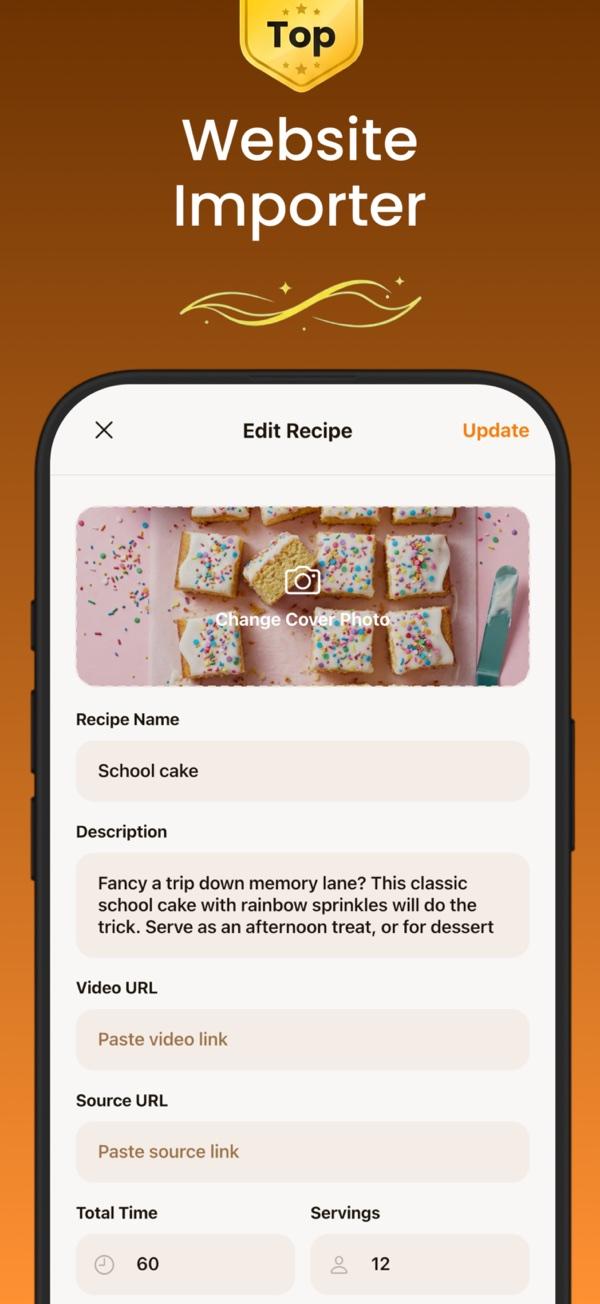
A recipe record should let you find the original when you need to check a technique or correction. Receply’s official edit-screen image shows separate Video URL and Source URL fields. Use the video link for the clip and the written-page link for the recipe source when you have both.
The real Receply image below shows those fields; it does not demonstrate import success. Preserve the original link and creator credit even when you make personal cooking notes.
Before relying on the saved recipe, close it and find it again by the name you chose. Check that your notes distinguish the creator’s directions from your own changes. A link alone is not a written copy, and saving a recipe does not guarantee the source video will remain accessible.
Once the recipe is complete, you can decide when to cook it. Our guide to turning saved recipes into a weekly meal plan covers that next step. If Receply’s input options do not suit your sources, compare the documented workflows in our recipe-organizer roundup.
The useful finish line: one recipe you can read, check and find again—with its source still attached. A plain note can be enough for an occasional recipe if it holds those details. Import when it works, enter details manually when needed, and leave missing information unresolved rather than letting an attractive video stand in for complete instructions.