

Choose OneDrive if you want Microsoft’s recommended route and scans saved in OneDrive. Choose Scany if your main job is capturing, arranging and exporting PDFs from a dedicated mobile scanner. If you relied on Lens for extracting text or creating editable documents, check that requirement separately before switching. A readable PDF and editable text are not the same output.
Microsoft Lens is no longer a current scanning option. Microsoft’s retirement notice says it left the mobile stores on February 9, 2026, and stopped creating new scans after March 9. This comparison is about choosing your next workflow—not restoring retired features.
Microsoft Lens alternatives at a glance
| Need | OneDrive | Scany |
|---|---|---|
| Main workflow | Capture into your OneDrive files | Dedicated scan, arrange and PDF export |
| Mobile platforms | iOS and Android | iOS and Android |
| Storage decision | Microsoft says new scans save to OneDrive, not locally | Export and share PDFs; verify your chosen destination |
| Text recognition | Microsoft documents Recognize text in scanned PDFs, with rollout caveats | OCR is not verified in the current product documentation |
| Old Lens library | No automatic migration assumed here | No Lens-library import promised |
We compare documented capture, output and storage behavior, not camera-quality scores. Features below are checked against current developer sources; this is not a hands-on speed or accuracy test.
Before changing apps, check where your old Lens files live
Treat your existing archive and your next scan as two separate jobs. Microsoft says past scans remain accessible only if Lens stays installed and you are signed into its last active account. Do not remove it merely because you have picked a replacement.
- Look for existing exported copies in the locations you previously chose, such as your cloud folders or device files. A thumbnail inside Lens is not proof of an independent copy.
- Open several important documents outside Lens. Check the first and last pages, page order and small print.
- Where copies are accessible, keep a second copy in an appropriate backup location before changing devices or removing the old app. Follow Microsoft support guidance if access fails; a new scanner cannot recover an inaccessible Lens library.
A useful archive check is deliberately boring: find a document by its name, open it in a different viewer, and confirm that every page is present. Do this before spending time rebuilding folder names in another app.
OneDrive: the official Microsoft route when cloud storage fits
OneDrive makes sense when your documents already belong in Microsoft’s file-storage workflow. Its scanner is part of the mobile app, rather than a separate replacement Lens library. Microsoft’s retirement notice explicitly says it does not support saving new scans locally on the device.
For Android, Microsoft’s OneDrive scanning instructions describe Scan or Add → Scan, page capture, crop/rotate/filter adjustments, naming and saving. They document combining up to ten pages into one PDF. Check the current controls on your own platform rather than assuming the Android instructions match every iPhone screen.
The important decision is whether a cloud-folder destination is what you want. The illustration below explains that storage choice; it is a neutral editorial concept, not OneDrive’s interface.
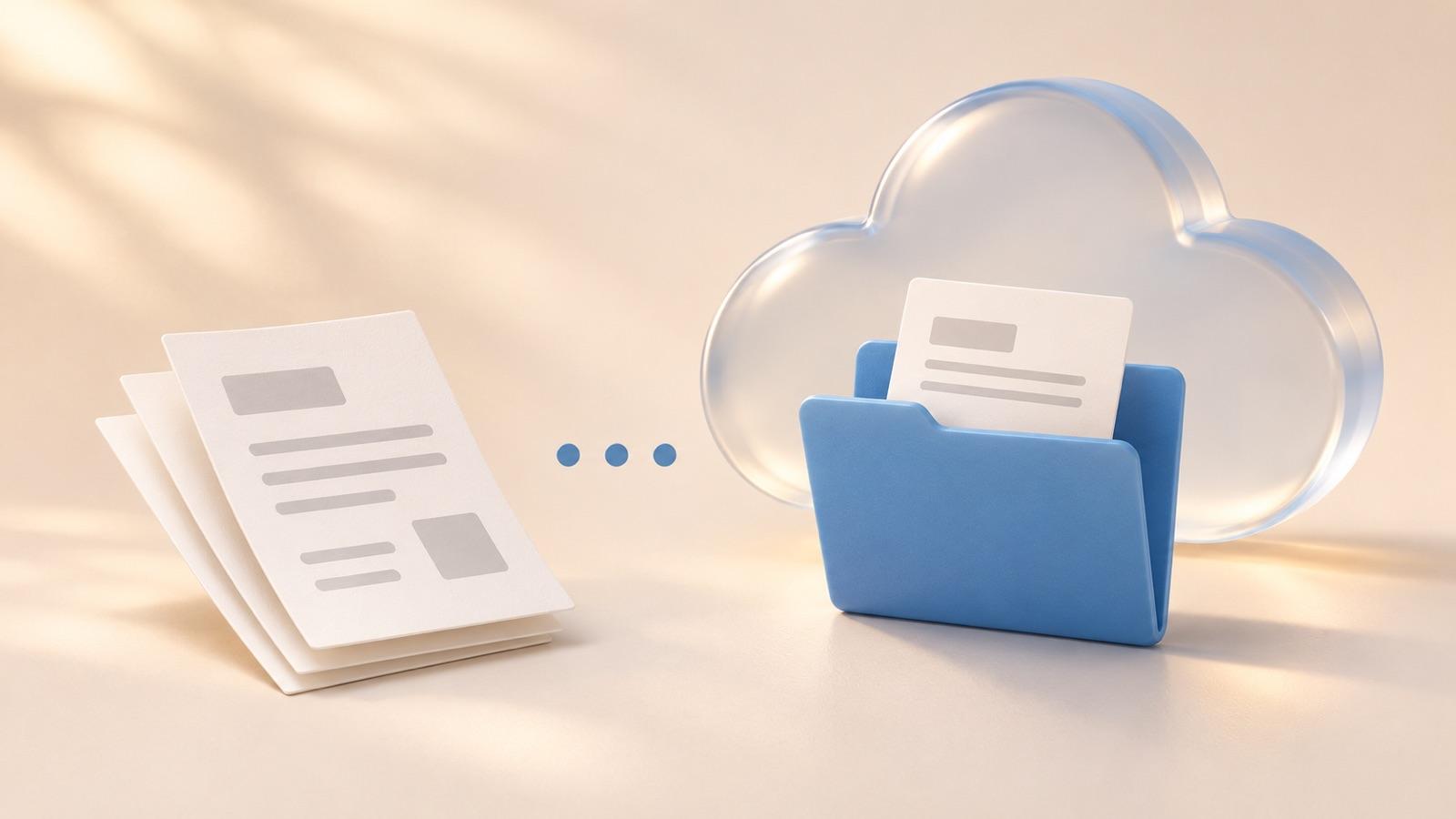
Choose this route when the destination is already correct for your work. If you need a different file destination or a scanner separate from cloud-file management, evaluate that requirement before moving your routine. For the Google-storage version of this decision, see our Google Drive scanner versus Scany comparison.
Scany: a focused option for new PDF capture and export
Scany is Zappira’s own scanner app. Its current documentation covers camera capture or saved-photo input, crop adjustment, multi-page ordering, folders and tags, and PDF export. That makes it a relevant alternative when the task is turning pages into an organized file to send or save.
For example, a three-page form can be captured, checked page by page, arranged in order and exported as a PDF. Review the exported copy in the destination you actually use. Importing saved photos is not the same as importing an existing Lens PDF archive, and this article does not promise that transfer.
This product illustration uses Scany’s real home screen and official icon. It represents the documented capture-and-export workflow, not a new text-recognition feature.
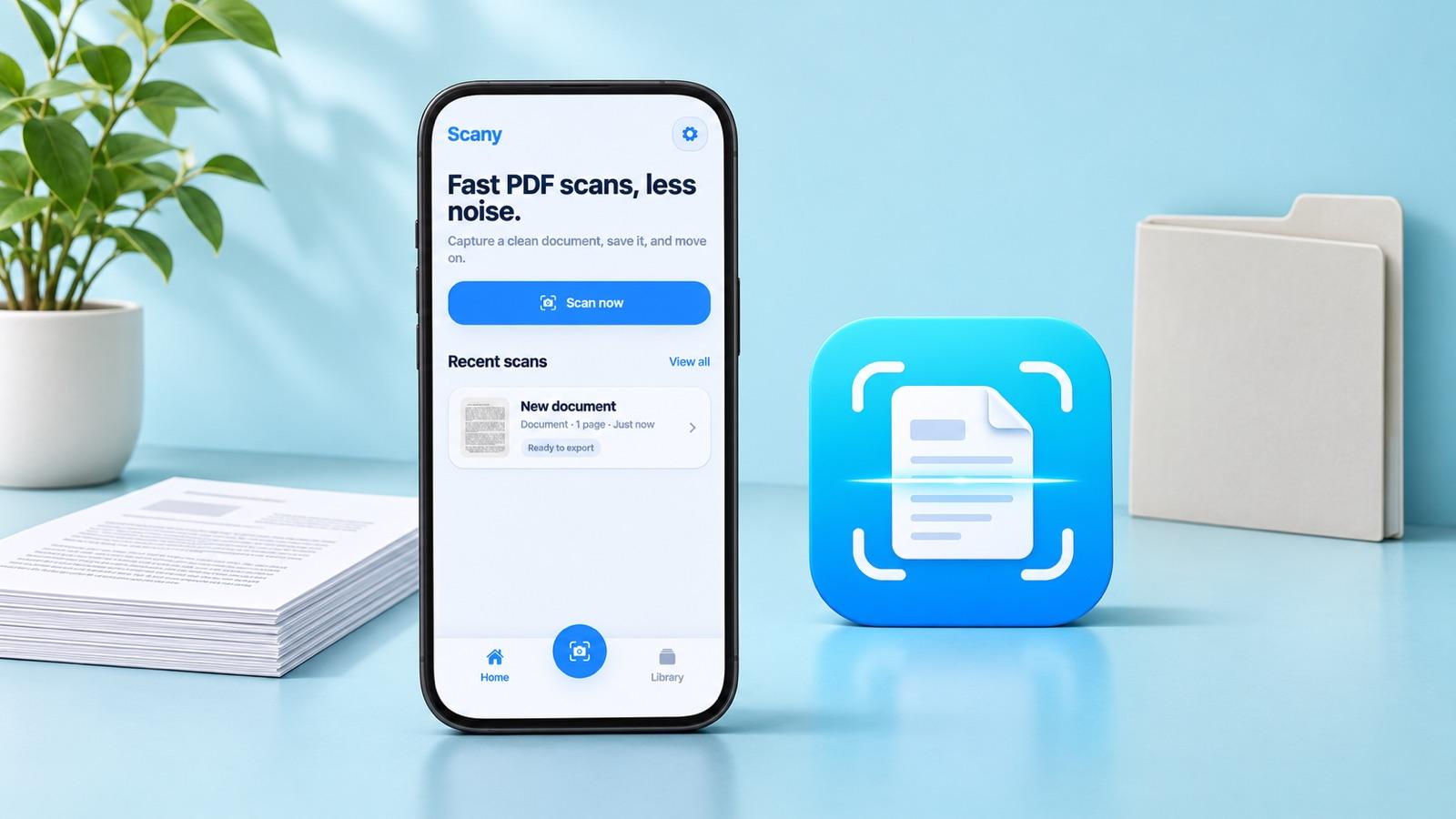
The limitation matters: OCR, editable Word export and automatic cloud synchronization are not verified in the current Scany sources used here. If one of those was essential in Lens, do not choose Scany on the assumption that every scanner includes it. For a detailed iPhone page-assembly workflow, see scanning multiple pages into one PDF.
If dedicated PDF capture is the fit, check the current official listing for your device:
If text recognition was the reason you used Lens
Decide which output you need: an image of a page, selectable words inside a PDF viewer, or an editable document with usable layout. Those are different acceptance criteria.
Microsoft documents a Recognize text action in OneDrive mobile for searching and copying scanned PDF text, and notes that it is rolling out on iOS and Android. Verify that it appears for your account and app version. That documentation is not a blanket promise of Lens-style Word export.
Try three representative documents before committing
Use this acceptance checklist with either option. It is a suggested decision test—not a claim that we ran the apps on these documents.
- A one-page receipt: can you read the date and total in the saved output, not just the capture preview?
- A three-page form: are all pages present, correctly ordered and named so you can find the file again?
- A page with text you need to reuse: can you select or copy the required words, or do you need another documented tool?
Finally, close the scanner and open the result from its intended destination. If the file cannot be found, shared or read there, the replacement has not yet passed your workflow test. Keep the old archive separate while you resolve that problem.
Bottom line: start with OneDrive when Microsoft storage is the natural destination. Consider Scany when dedicated PDF capture and export are the priority. Let an essential output requirement rule an option out—even if its scanning screen looks appealing.