
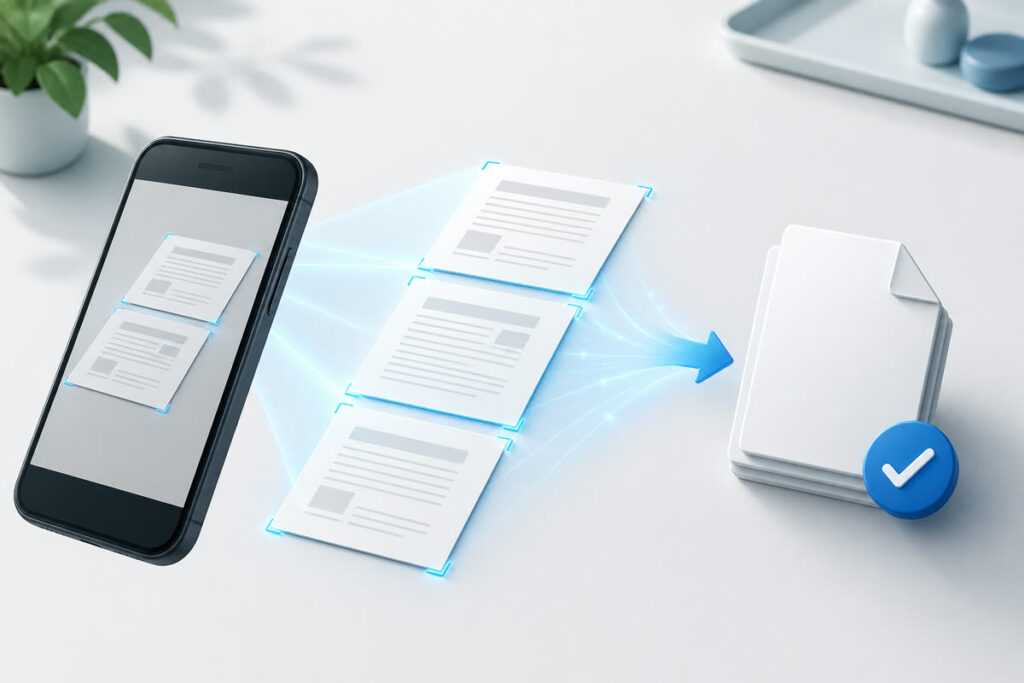
To scan multiple pages into one PDF on iPhone, use the document scanner in Apple Notes or Files, capture each page, then tap Done. Notes saves the pages as one PDF inside the note; Files lets you choose where to save it. If you want to import existing photos, arrange pages before export, or organize scans with folders and tags, a dedicated scanner such as Scany gives you those controls in one workflow.
Choose the quickest method for your job
| Method | Best for | What happens to the pages |
|---|---|---|
| Apple Notes | A quick scan you want to keep with notes | Additional scans are saved together as a PDF in the note |
| Apple Files | A PDF you want to save directly in a folder | You add scans, choose a location, and save the document |
| Scany | Camera scans or saved photos that need arranging and organizing | You can preview, add, remove, reorder, export, and share pages |
For an occasional paper form, Notes or Files is usually enough. Choose Scany when page order, photo import, reusable organization, or export-quality control matters.
Before you scan: prepare the pages
- Put the pages on a flat surface with a contrasting background.
- Use even light and move lamps if they create glare or a phone-shaped shadow.
- Flatten folded corners so automatic edge detection can see the whole page.
- Place the pages in their final reading order before you begin.
- Keep private documents out of the background because the camera may capture more than the page.
A steady phone and a clean first capture save more time than trying to repair a blurry page later. Hold the camera parallel to the paper rather than at an angle.
Method 1: scan multiple pages with Apple Notes
- Open Notes, then create a note or open an existing one.
- Tap the Attachment button and choose Scan Documents.
- Place the first page in view. In Auto mode, iPhone captures it when the page boundaries are detected.
- For manual capture, switch from Auto if needed, tap the shutter button or press a volume button, adjust the corners, and tap Keep Scan.
- Repeat for every additional page.
- Review the captures, then tap Done.
Apple’s current iPhone guide to scanning in Notes confirms that you can scan additional pages and that the finished document is saved as a PDF in the note.
Method 2: scan directly into Apple Files
- Open Files and go to the folder where you want the PDF.
- Tap the More button, then choose Scan Documents.
- Capture the first page automatically or use the shutter button for manual control.
- Adjust the page corners if the detected boundary is wrong, then keep the scan.
- Add the remaining pages and tap Done.
- Choose the destination and save the file.
Files is the more direct built-in route when the result belongs in a project folder rather than a note. Apple documents both the Notes and Files workflows in its official document-scanning instructions.
Method 3: arrange and export pages with Scany
Scany is developed by Zappira, the publisher of this guide. Its current App Store and Google Play listings say the app can capture paper with the camera or import saved photos, detect documents automatically, correct perspective, adjust crops, and apply Clear, Bright, or Office enhancement modes.
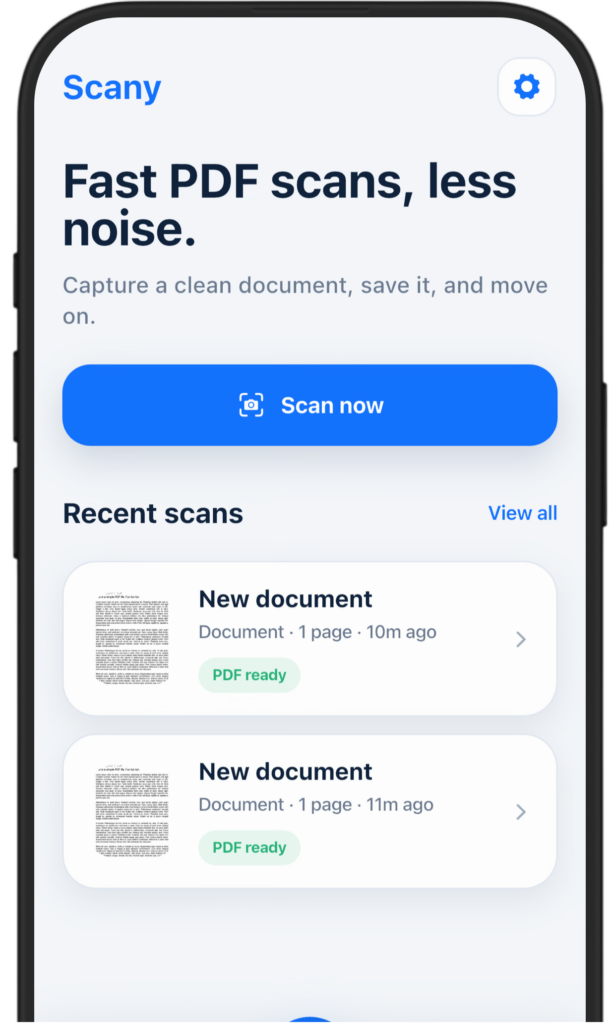
- Start a scan with the camera, or import one or more existing photos.
- Check every page before export. Correct any crop that cuts off text or includes too much background.
- Add missing pages, remove accidental captures, and drag pages into the intended reading order.
- Rename the document. Add a folder or tags if you will need to find it again.
- Choose the export quality that fits the job, then export or share the PDF.
The practical advantage is control before export: Scany’s official listings specifically include adding, removing, and reordering pages, combining multiple photos into one PDF, and choosing export quality. The tradeoff is that you are installing another app; for a one-off scan that needs no reordering or organization, Apple’s built-in tools may be faster.
You can review Scany’s document-scanning features or download Scany from its official App Store listing.
How to check the PDF before you send it
- Count the pages. Compare the PDF with the paper stack so nothing is missing or duplicated.
- Read the smallest important text. Names, totals, dates, signatures, and reference numbers should be sharp at normal zoom.
- Inspect every edge. Make sure the crop did not remove a signature, page number, stamp, or handwritten note.
- Check the order. Covers, instructions, attachments, and signature pages should appear where the recipient expects them.
- Use a useful filename. A name such as lease-application-jane-doe.pdf is easier to identify than New document.pdf.
- Open the exported file once. Confirm that the share or export step produced the document you reviewed.
Fix common multi-page scanning problems
One page is blurry
Retake only that page if your scanner allows it. Add more light, clean the camera lens, hold the phone parallel to the paper, and wait for focus before capture. Enhancement filters can improve contrast, but they cannot restore text that was never captured sharply.
The crop cuts off a corner
Move the paper onto a background with stronger contrast and capture it again, or adjust the crop handles before keeping the page. Pay special attention to receipts, which often blend into pale tables.
The pages are in the wrong order
Correct the order before export when the app supports page arrangement. This is one reason to choose Scany for a longer document: its current listings explicitly include page reordering. If your built-in workflow already produced the PDF, rescanning a short stack in order may be quicker than rebuilding the file.
The file is too large to email
Remove duplicate or blank pages first. If your scanner offers export-quality choices, use a lower setting only after confirming that the smallest text remains readable. A cloud link may be safer than heavy compression for a document whose fine print matters.
Frequently asked questions
Can an iPhone scan several pages into one PDF?
Yes. In Notes, scan the first page, continue scanning additional pages, then tap Done. Apple says the document is saved as a PDF in the note. Files also lets you add scans before saving the document to a chosen location.
Can I combine photos I already took into one PDF?
Yes, with an app that supports photo import. Scany’s current iPhone listing says it can import existing photos, build multi-page PDFs, arrange pages, and export the result.
Should I use Notes, Files, or Scany?
Use Notes for a quick scan attached to a note, Files for a PDF saved directly in a folder, and Scany when you need photo import, page arrangement, export-quality choices, folders, or tags. The best choice is the simplest one that gives you the control your document actually needs.