

Choose Google Drive’s scanner if the finished scan belongs in a Drive folder you already use. Choose Scany if you want a dedicated scan collection with folders and tags, then export and share the finished PDF yourself. Both can capture multiple pages; the more useful distinction is where the document should end up and how you will find it later.
This Google Drive scanner vs Scany comparison focuses on Android workflows. Scany also has an iOS version, but the Google menu paths below are Android instructions. The comparison uses current official documentation and store listings, not a hands-on image-quality or speed benchmark.
The short comparison: choose the destination first
| Your requirement | Google Drive scanner on Android | Scany |
|---|---|---|
| Save directly into a Drive folder | Choose the Drive location before saving | Export the PDF; upload separately if you want a Drive copy |
| Organize a dedicated scan collection | Organize the saved files in Drive | Rename documents and use in-app folders and tags |
| Capture several pages | Add pages in the scan session | Add, remove, preview and rearrange pages |
| Find words inside scanned pages | Google documents searchable PDFs | OCR/searchable-text output is not advertised in the sources checked |
| Keep a separate file on the phone | Download the saved file as a separate step | Export to your chosen available destination and verify the result |
These are workflow criteria, not a points-based ranking. A separate scanner is not automatically better than a scanner inside a storage app. If Drive already completes your job, keeping that routine is a sensible choice.
Google Drive: scan into the folder where the work already lives
Drive suits a document that already has a place in your Google filing system: a household paperwork folder, a class folder or a project’s reference files. The scanner and destination belong to the same workflow. Google’s Android scanning instructions document automatic or manual capture, crop/rotate, filters, cleanup and adding another page.
The important final choice is the location, not just a readable preview. Google documents naming the scan, choosing PDF or JPG, selecting a Drive folder through Location, then saving. Choose PDF for the comparison here and confirm the intended Google account before relying on the result.
A scan saved in Drive is not the same thing as a separate downloaded file. The illustration separates those two outcomes; it does not show Google’s interface or an automatic copying feature.
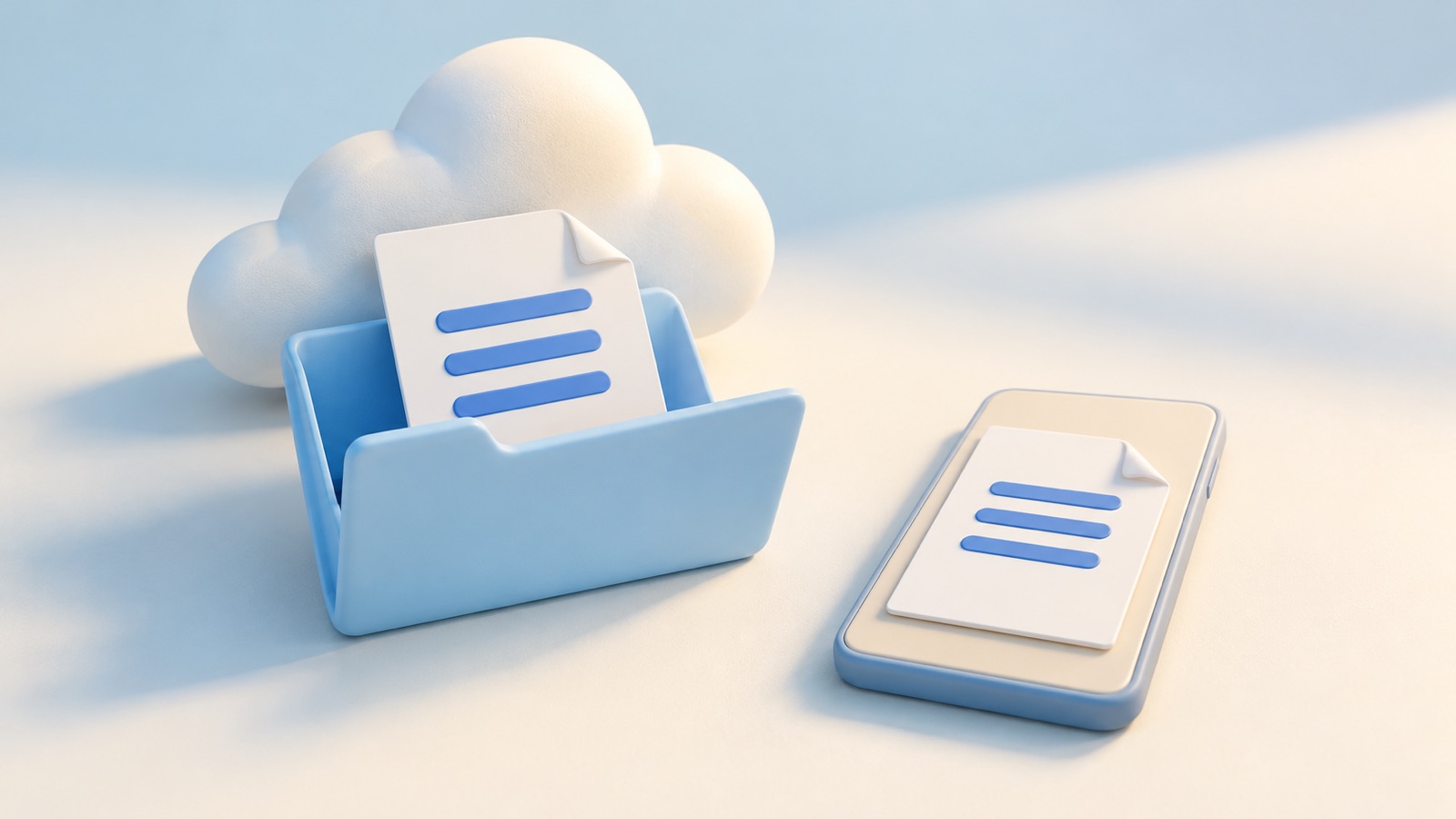
If you need the PDF outside Drive on Android, Google’s download instructions give a separate route: beside the saved file, tap More → Download. Open that downloaded copy in the app or location where you intend to use it.
Choose Drive when that filing destination—and its documented searchable-PDF output—matters more than having a separate scan library. Do not assume that seeing a thumbnail proves the file is available wherever you need it, or that a cloud file and an exported copy will stay synchronized after later edits.
Scany: organize the scan, then decide where its PDF goes
Scany is made by Zappira, which publishes this comparison. Its current product page and official listings describe camera capture and saved-photo import, crop and perspective correction, enhancement modes, multi-page arrangement, folders, tags and PDF export. That fits someone who wants to manage scans as a collection before sending individual documents elsewhere.
For example, keep a document in an appropriate in-app folder, give it a recognizable name, review its pages and export the final PDF when it is ready. The illustration uses Scany’s real home screen and official icon as its identity sources.
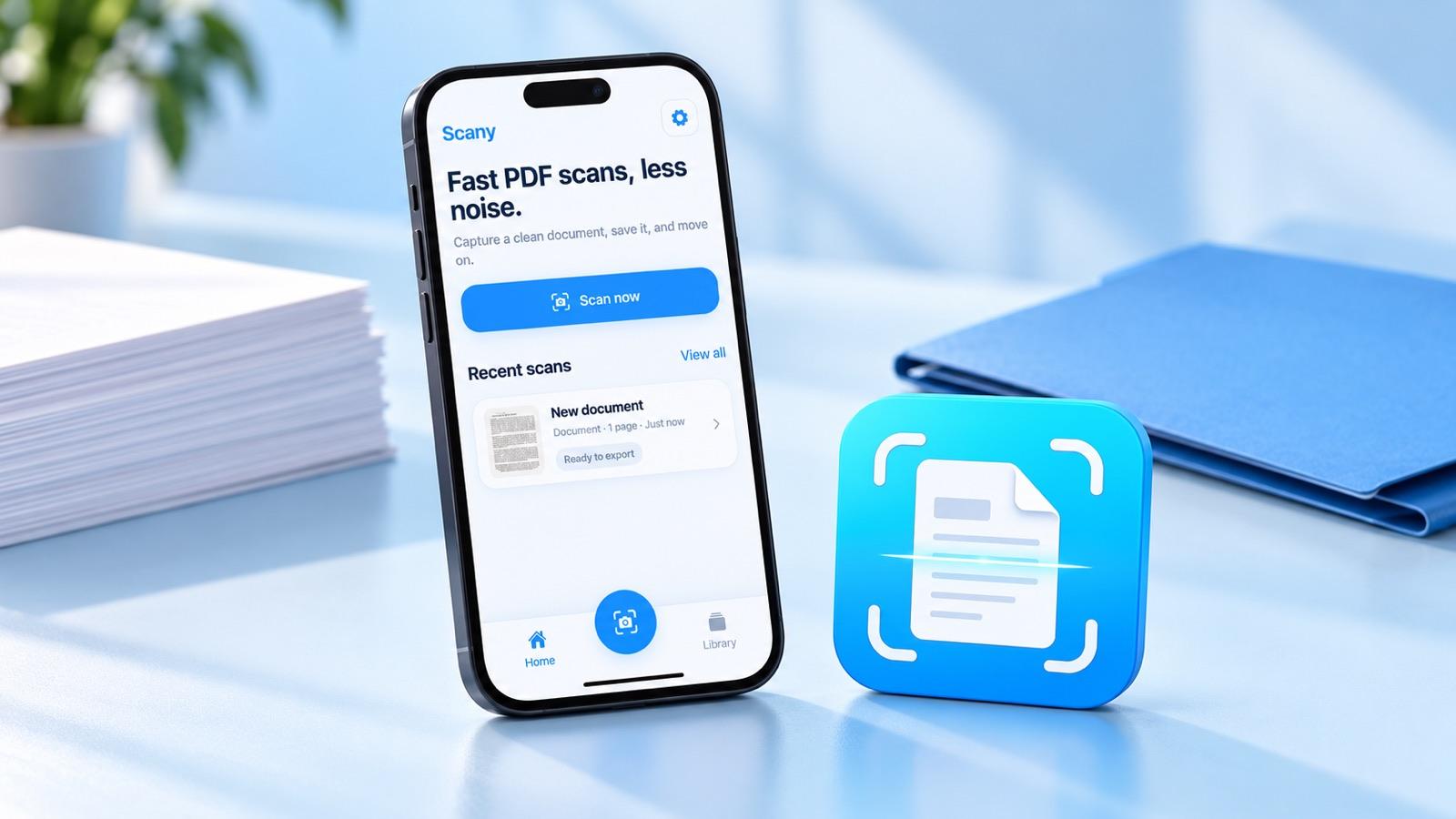
The limitation is important: the sources checked do not advertise OCR/searchable-text output or automatic Google Drive synchronization. Do not choose Scany expecting those capabilities. Its documented value here is the capture, organization and PDF-export workflow, not a promise of cloud backup, unattended filing or a better scan on every phone.
If a dedicated scan collection fits how you work, review Scany’s current official listing for your device:
You can use both—but treat the handoff as a separate job
Using Scany for capture does not prevent you from choosing Drive as a later destination. It does add a handoff: first export the finished PDF to an accessible location, then upload that file to Drive. Google’s Android upload guide documents New → Upload and selecting the file. Check its final Drive location after upload.
This is a manual file workflow, not a verified Scany-to-Drive integration. If you revise the document in Scany later, do not assume the earlier exported or uploaded copy changes with it. Identify which version you intend to use and check the destination again.
That extra handoff is worth considering before switching: if every scan must immediately land in one Drive folder and you do not need a dedicated scan collection, Drive’s own scanner may be the simpler fit. If you want folders and tags in Scany and only export selected documents, the extra step may match your routine.
A three-document destination check before you commit
Use a harmless sample, not an irreplaceable original, to check the workflow on your own phone. This worksheet is a suggested acceptance check, not a claim that we tested either app’s accuracy. Write down the intended destination before starting.
| Sample | Check after saving or exporting | Pass condition |
|---|---|---|
| One ordinary printed page | Open it from the final folder, not the scanner preview | The file is where you expected and small text is readable |
| One three-page document | Open the final PDF and inspect the first, middle and last page | All pages are present, correctly oriented and in the intended order |
| One document you must find later | Leave the scan screen, then retrieve it by its planned name/location | You can identify the right file and version without rescanning |
If searchable text is essential, add a fourth check: search for a distinctive printed word in the saved document using your intended viewer or search workflow. A clean-looking page is not evidence of searchable text, and text recognition should not be assumed to be error-free. Scany’s sources do not establish that output.
For a file you will send elsewhere, open the exact exported or downloaded copy and check the destination’s requirements, including accepted format and file size. Do not infer a recipient can access a Drive link simply because you can. For work or sensitive documents, follow your organization’s approved storage and sharing rules rather than treating either product description as a security assessment.
Which should you use?
Start with Google Drive when the document’s home is already Drive and its documented scanner meets the task. Try Scany when you want a dedicated scan library, folders and tags, and control over which finished PDFs you export. Use both only when the extra export-and-upload handoff earns its place.
If your actual starting point is a set of saved pictures, our Android photos-to-PDF guide covers that assembly task. For a filing routine after capture, see how to scan and organize receipts. Choose the route that leaves a verified, findable file—not simply a successful camera capture.