

To convert saved photos to one PDF on Android, import the images into a tool that supports multi-page PDFs, check their order and crops, then export the document as a PDF. You do not need to photograph the pictures again or take screenshots of them. Scany’s current Android listing explicitly supports combining multiple photos into one PDF.
This guide is for images you already have: photographed pages, saved document pictures or a small set of supporting images. Conversion packages those images into a document; it does not automatically repair unreadable text, make every word searchable or guarantee a smaller file.
1. Choose the source photos before you import
Open the full-size images and decide what belongs in the final document. Use the clearest available copy of each page rather than a screenshot of a picture displayed on your phone. Keep the originals until you have checked the finished PDF.
- Remove accidental duplicates from your planned selection—not necessarily from your photo library.
- Check that every page edge and important line is visible. A PDF cannot restore a corner that was cut off in the source.
- Put sideways pictures upright in your usual photo editor before importing if needed.
- Exclude unrelated images and check backgrounds for private information that should not be shared.
Make a tiny page manifest when filenames or capture dates are confusing. For example, the following is a fictional three-page submission, not a required template for any particular organization:
| Final page | Image to include | Check before adding |
|---|---|---|
| 1 | Cover page | Use the complete, readable version |
| 2 | Main form | Do not substitute a duplicate cover image |
| 3 | Supporting page | Keep all relevant edges and text |
2. Use Scany for saved-image assembly
Scany is Zappira’s document-scanning app; Zappira also publishes this guide. Its official Android listing documents photo import, combining images into one PDF, crop adjustment, adding/removing/reordering pages, export-quality choices and PDF sharing.
Those are the useful controls for this job. The product illustration below uses Scany’s real home-screen layout and official icon; it is not a screenshot of Android’s photo picker. Controls and menu placement may vary by platform and version.
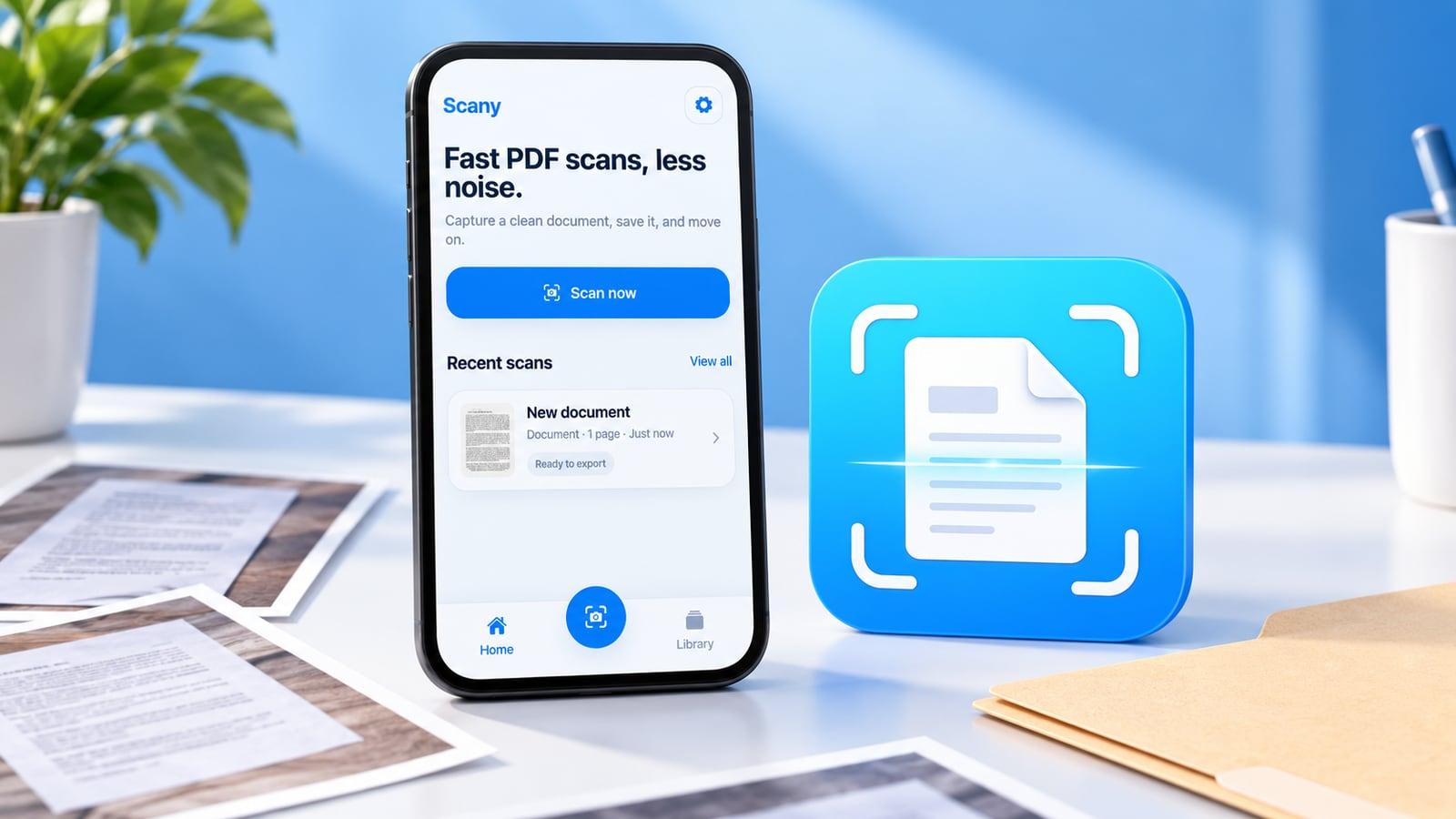
Use the app’s existing-photo import option rather than starting a new camera capture. Select the intended images, review the imported pages and add any missing image to the same document. The goal is one assembled document, not a separate export for each picture.
If this workflow fits, review the current official listing for your platform. Scany is available on iOS and Android; the instructions here focus on saved photos on Android.
3. Check what Android actually selected
If the import flow opens Android’s system Photo Picker, it may allow one image or multiple images, depending on the app configuration. Google’s Photo Picker instructions describe using View selected to inspect a multi-selection and Add to confirm it. Some steps apply only to Android 13 and later.
In that picker, the app receives access to the media you select. Do not assume that seeing a picture in the grid means it was included. If available, Browse can show other media providers; Google notes that not every app permits browsing. This is conditional system guidance, not a claim that every Scany version opens the same picker.
After import, compare the document’s page count with your manifest. If three source pages should produce three PDF pages, two pages means something is missing and four may mean a duplicate. Inspect the thumbnails rather than trusting the order in which the photo library happened to show them.
4. Put the pages in reading order and check the crops
Arrange pages by what the recipient should read first—not by filename, download time or thumbnail position. Remove an unwanted duplicate from this document, add the missing page and review each crop before export.
The illustration represents a deliberate sequence with a duplicate set aside. It is an editorial checklist visual, not an app interface or a claim that Scany sorts pages automatically.
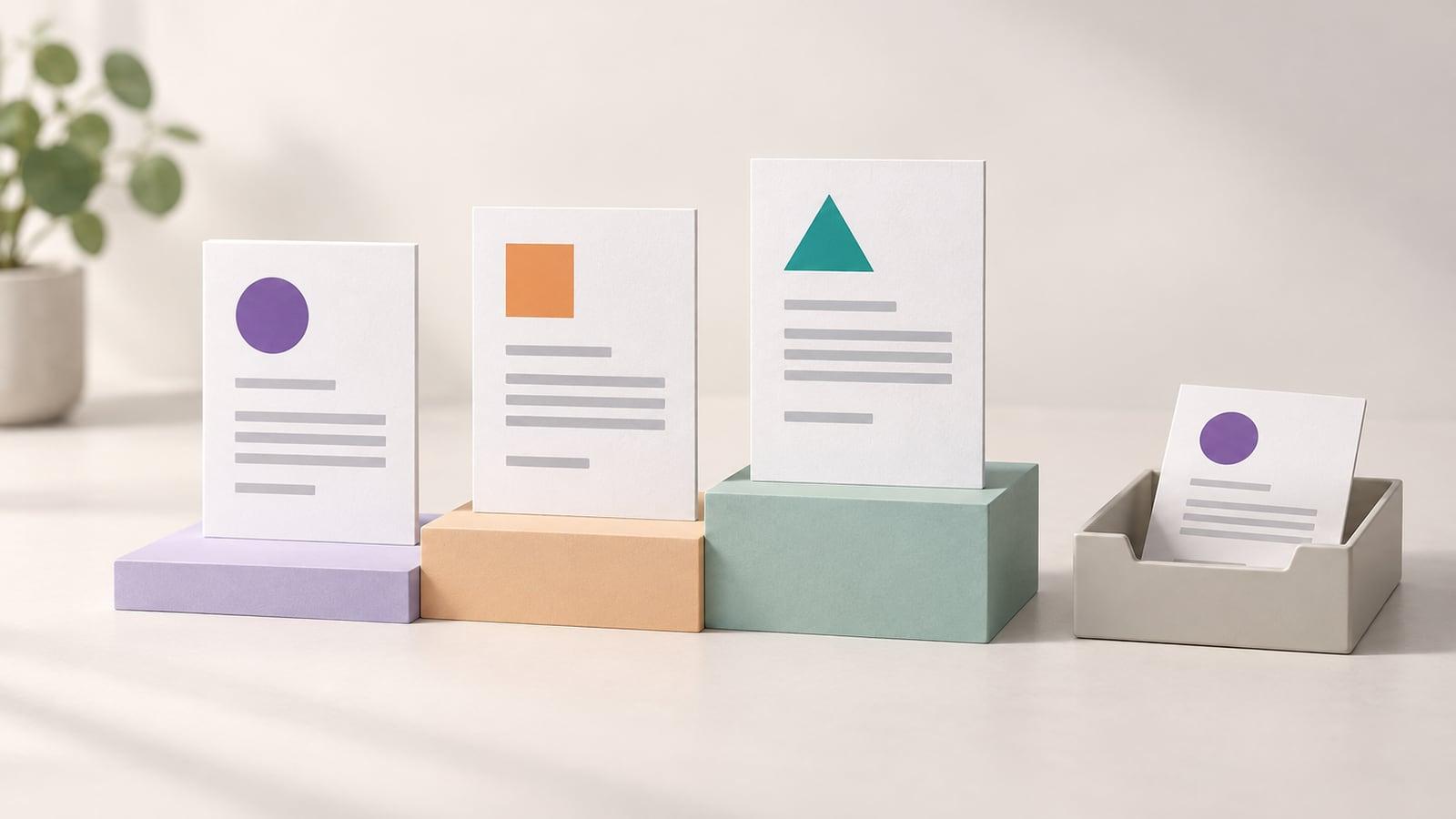
- Sequence: compare every thumbnail with the manifest, including the first and last pages.
- Edges: keep reference numbers, annotations and other necessary details inside the crop.
- Readability: zoom into the smallest important text. Keep the version that preserves the information, not merely the one with the whitest background.
- Completeness: check that a photographed two-page spread has not hidden part of either page. Revisit the source if information is missing.
Scany’s listed enhancement modes can change the look of a document image, but do not assume that enhancement can reconstruct blurred or missing characters. If the original photo is unreadable, obtain a better source or photograph the paper again when possible.
5. Export, then open the PDF from its destination
Give the document an identifiable name, choose an available export quality and export or share the PDF. A name such as 2026-10-19_project-documents.pdf is an example—not an actual document record.
Open the exported file from the location where you saved or sent it, rather than checking only the preview inside the app. Confirm the page count, reading order, legibility and filename. If the recipient requires a maximum file size or another specific format, check the finished file against that requirement before submitting.
Do not assume PDF means compressed. If the file is too large, remove unnecessary pages first. Try another available export-quality setting only if the resulting text remains readable; no particular size reduction is guaranteed. Keep the clearer source images so you can export again.
When the result is not what you expected
- A picture is missing: reopen the source image, then revisit your selection or add it separately to the same document. Check the selected preview if the system picker offers it.
- You got several PDFs: return to the document-assembly step and confirm that all intended pages are together before exporting.
- The PDF looks like a photo: that is expected for image-based conversion. Searchable or editable text requires a separately verified OCR feature; this guide does not claim Scany provides it.
- The original was cropped or blurry: conversion alone is not a repair method. Replace the source where possible.
For paper you have not photographed yet, our iPhone multi-page scanning guide covers the camera-first route. For receipt naming and filing, see how to scan and organize receipts.
For saved Android photos, the essential routine is simpler: select the right originals, assemble the pages deliberately and reopen the exported PDF. A correct document matters more than a quick export you have not checked.