
Choose Swipli when you want to decide which photos and videos are worth keeping, one manageable batch at a time. Choose Google Photos’ Free up space when you want to keep backed-up pictures but remove eligible copies from your Android phone. Those are different jobs: a tidier collection is not the same as more device storage.
This Swipli vs Google Photos comparison focuses on Android cleanup decisions. It also separates a third problem—Google Account storage running low—so you can choose the right action before anything disappears. The comparison uses official product descriptions and Google support guidance checked on September 9, 2026, not a claimed hands-on benchmark.
Start with the outcome you want
| Your goal | Better starting point | Important distinction |
|---|---|---|
| Review an overcrowded camera roll | Swipli’s month-by-month keep/delete workflow | You choose unwanted media; this is not cloud-backup management. |
| Keep backed-up memories, but reclaim phone storage | Google Photos: Free up space on this device | Eligible local copies are removed; backed-up pictures remain in Google Photos. |
| Reduce storage used in your Google Account | Google Photos: Manage storage | Review cloud-library items; removing local copies alone does not solve account quota. |
| Delete only a handful of unwanted pictures | The photo app you already use may be enough | Read its deletion warning and check which copies are affected. |
The framework is purpose, storage target, review control, and consequences—not a score based on how many features each app lists. Google Photos can also organize and delete pictures manually; Swipli’s appeal is its focused review routine, not an exclusive ability to remove photos.
Swipli: a focused way to decide what stays
Swipli, developed by Zappira, groups media by month and uses a simple decision loop: swipe left to mark an item for removal, right to keep it, and undo your last swipe if needed. Its product page describes a final review where you can unselect items before confirming deletion.
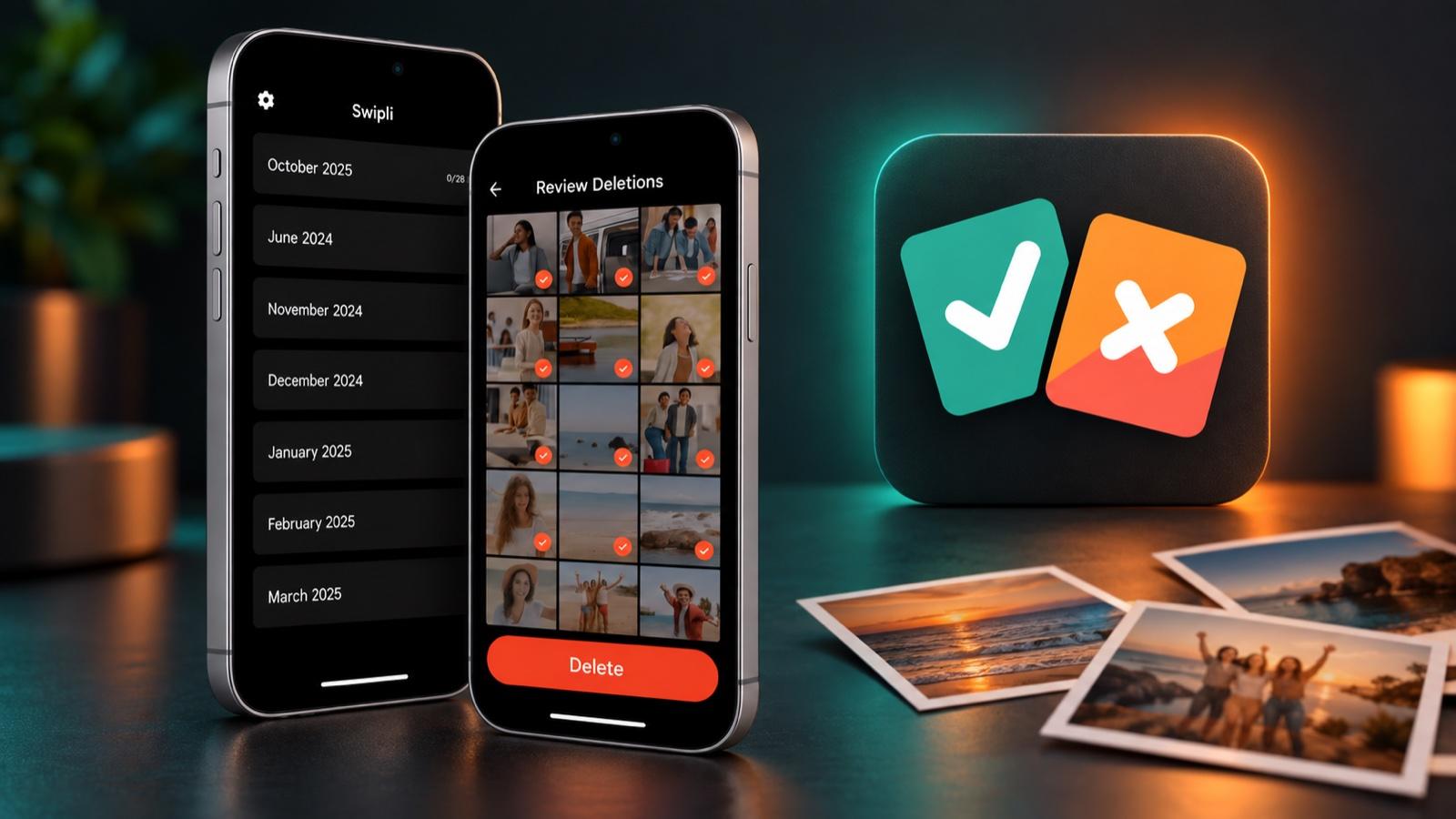
That approach fits a collection full of individually different but no-longer-useful pictures: a restaurant menu, several attempts at the same scene, or an old screenshot you no longer need. The decision is personal. A technically sharp photograph can still be unnecessary, while a blurry one can matter.
Example: choose one holiday month and review only that batch. Keep meaningful moments, set uncertain items aside by keeping them, and revisit the proposed deletions before confirming. Finishing one month is a clearer stopping point than trying to empty an entire library in one session.
Limitation: you still make the decisions. Do not treat Swipli as a cloud backup service or assume that deleting through a cleaner guarantees that a cloud copy survives. This comparison does not establish automatic duplicate detection or best-shot selection.
Swipli is available on iOS and Android. Check the current listing for compatibility and product details:
Google Photos: remove device copies without culling memories
If you like your pictures and only need space on the phone, deleting memories is the wrong starting point. Google documents a dedicated Android operation for removing device copies that are safely backed up. Open Google Photos, check the account and backup, then use your profile menu’s Free up space on this device option. Review the amount shown before confirming.
The trade-off is access: removed copies are no longer available in the phone’s built-in gallery or offline in the same way. They remain accessible through Google Photos with the appropriate account and connection. Follow Google’s Android device-space instructions and keep anything you need offline separately.
Do not substitute the normal Trash command. Google’s ordinary deletion workflow can remove the item from the Google Photos library and affected devices. That is a different outcome from removing a backed-up device copy. Read Google’s deletion and recovery guidance before using it on important pictures.
If Google Account storage is full, use a different workflow
Phone storage and Google Account storage are separate places. Google Photos’ Manage storage workflow helps you review items such as large photos and videos in your account. On Android, the documented route is your profile menu, Photos settings → Backup → Manage storage.
Review candidates rather than deleting a whole category automatically. Google notes that removing an item does not always reduce account usage, because some items do not count toward that storage. See Google’s account-storage guidance for the current rules.
Swipli can help you make keep-or-remove decisions about accessible media, but it is not a replacement for checking your Google Account quota. Conversely, removing backed-up phone copies does not decide which memories deserve a place in your collection.
A small safety check before a large cleanup
Write down which outcome you intend: “remove this everywhere” or “keep a backup, remove only the phone copy.” Then use this checklist before working through important media:
- Protect irreplaceable pictures. Keep an independently verified copy outside the cleanup workflow. Open a few files to confirm they are readable.
- Check the account and backup state. Do not assume a visible thumbnail proves that a separate backup exists.
- Use a disposable test photo. Make a new, unimportant picture and confirm where its copies exist. Try the intended action on that item first.
- Inspect the result in both places. Check the device gallery and the intended cloud account. Stop if the behavior differs from your goal; a test is a checkpoint, not a guarantee for every folder or file.
- Work in small batches. Read confirmation dialogs and review selections. Do not empty trash simply to finish faster; check the relevant app’s recovery rules first.
One Android complication is gallery integration. Google warns that, on supported devices with gallery access enabled, deleting in the default gallery can also delete a backed-up Google Photos item. This does not prove identical behavior for every third-party cleaner; it is a reason not to promise universal cloud isolation. Check Google’s gallery-access explanation and the prompts on your own device.
Which should you choose?
Choose Swipli for a deliberate review habit. Its month-based workflow suits people who want to inspect pictures individually and reduce clutter through their own decisions. Choose Google Photos’ device-space tool for backed-up copies you want to keep. Use its account-storage tools when the cloud quota—not the phone—is the problem.
You can use both for different purposes, but do not run two cleanup operations blindly on the same batch. Confirm the result of one before beginning the next. If you need duplicate-file tools or album-focused alternatives, see our Android photo cleaner comparison. For Apple’s built-in cleanup approach, see Swipli vs Apple Photos.