

The best photo cleaner app for Android depends on what you are actually trying to clean. Choose Swipli for deliberate month-by-month swipe review, Google Photos for a backed-up cloud library, Files by Google for exact duplicate files and broader storage cleanup, Slidebox for sorting photos into albums, or Sponge for a gamified swipe workflow that can also move media into folders.
No single app is strongest at manual culling, duplicate detection, cloud storage, and album organization at the same time. The safest choice is the one whose cleanup method matches your library—and still lets you review what will disappear.
Best Android photo cleaner apps at a glance
| App | Best for | Cleanup method | Important limitation |
|---|---|---|---|
| Swipli | Careful monthly camera-roll review | Swipe left to remove, right to keep, with undo and a final review | The current listings do not clearly advertise automatic duplicate clustering or best-shot selection |
| Google Photos | Backed-up libraries and Google Account storage | Storage recommendations, photo stacks, and removal of backed-up device copies | Cloud and device storage are different; “Free up space” removes local copies after backup |
| Files by Google | Exact duplicates and general device storage | Cleanup cards for duplicate files, old chat images, large files, cache, and more | It is a file manager, not a photo-by-photo culling or album-organizing tool |
| Slidebox | Sorting while cleaning | Swipe deletion, one-tap album sorting, similar-photo comparison, and undo | Changes work directly with the gallery, so understand how your gallery and Google Photos sync |
| Sponge | Gamified progress and folder organization | Swipe by month or album, resume sessions, sort media, and move items to folders | Its current listing emphasizes manual swiping rather than automatic duplicate classification |
This roundup uses current official Google Play listings and Google support documentation. It compares advertised workflows and limitations; it does not claim that every app was lab-tested on the same photo library.
How we chose these apps
Every pick has a currently accessible Android listing and solves a distinct cleanup job. We compared five criteria that matter more than a generic feature count:
- Selection method: automatic recommendations, exact-duplicate matching, or manual review.
- Control: whether you can inspect items before confirming a deletion.
- Storage target: device storage, cloud-account storage, or both.
- Organization: albums, folders, monthly batches, and resumable sessions.
- Recovery awareness: whether the workflow makes it clear that deleting, removing a device copy, and emptying trash are different actions.
Ratings, download counts, and review quotes were not used to rank the apps because those numbers change and do not prove that a cleanup method fits your library.
1. Swipli: best for a deliberate month-by-month review
Swipli is the clearest fit when you do not want an algorithm deciding which memories are expendable. Its current Android listing describes a simple decision loop: swipe left to remove a photo, swipe right to keep it, and undo a mistake immediately. Photos and videos are grouped by month so a large camera roll becomes a series of smaller sessions.
The Zappira product page also describes a final review step before deletion. That is useful after a long session because the first decision is not the last chance to catch a mistake.
Swipli is made by Zappira, which publishes this roundup. Its honest advantage here is manual control, not automatic intelligence: the current official listings do not clearly advertise automatic duplicate clustering, near-duplicate detection, or best-shot selection. If your library contains tens of thousands of photos and you want a tool to surface candidates automatically, begin with Google Photos or Files by Google, then use manual review for the ambiguous items.
Choose it if: you prefer deciding photo by photo, like working in monthly batches, and want undo plus a final review.
Skip it if: your main need is automatic duplicate grouping, cloud-library management, or broad cleanup of downloads, cache, and non-photo files.
Open Swipli’s current Android listing for the latest supported features and requirements.
2. Google Photos: best for backed-up libraries
Google Photos is the strongest choice when backup, cross-device access, search, and cloud-account storage are already part of your photo workflow. Its current Google Play listing describes automatic grouping of duplicates and similar photos into stacks, folders for screenshots and documents, and a storage-management tool that can surface items such as blurry photos, screenshots, and large videos.
Be precise about the two cleanup actions. Google’s Free up space documentation says the feature removes device copies after they are safely backed up; you can still see those items in Google Photos, but not necessarily in another gallery app or while offline. Google’s separate Manage storage tool works on the storage associated with your Google Account.
Choose it if: you trust your backup status, want searchable cloud access, and need recommendations for backed-up media.
Skip it if: you want a device-only manual review or do not want cleanup tied to a Google Account and cloud library.
3. Files by Google: best for exact duplicates and broad storage cleanup
Files by Google is a better first stop when photos are only one part of the storage problem. Its current Google Play listing describes cleanup recommendations for duplicate files, old photos from chat apps, cache, and other space users. It can also sort files by size and move files to Google Drive or an SD card.
For exact duplicates, Google’s official duplicate-file instructions say the original is marked with an “Original” badge and recommend keeping it. Selected duplicates are moved to Trash after confirmation.
The limitation is scope. Files by Google can identify duplicate files and other storage candidates, but it is not designed for subjective decisions such as choosing the best expression from five similar portraits or deciding whether an imperfect family photo is still meaningful.
Choose it if: you want to remove exact duplicates, inspect large files, and clean more than the camera roll.
Skip it if: your priority is visual culling, swipe decisions, or organizing photos into albums while reviewing them.
4. Slidebox: best for sorting photos into albums
Slidebox is aimed at people whose library is disorganized as well as oversized. Its current Google Play listing describes swipe deletion, one-tap sorting into albums, comparison of similar photos, and undo. It works directly with the Android gallery and says changes synchronize with Google Photos.
That direct relationship is useful, but it also means you should understand which library you are changing. Before a large reorganization, test one disposable screenshot: move it, delete it, and confirm where the change appears in your device gallery and Google Photos.
Choose it if: you want to sort keepers into albums during cleanup and compare similar photos manually.
Skip it if: you only need exact duplicate-file removal or a broad device-storage manager.
5. Sponge: best for gamified progress and folder moves
Sponge turns cleanup into a resumable checklist. Its current Google Play listing describes swiping through photos and videos, continuing where you stopped, organizing by month or album, moving items to folders while swiping, and sorting media by size, date, or name.
This is a strong match when motivation is the obstacle and visible progress helps you return to the task. The listing emphasizes manual swiping rather than an automatic duplicate engine, so it still expects you to make the final judgment.
Choose it if: you want resumable sessions, month or album progress, and the option to move media into folders while reviewing.
Skip it if: you want a one-time exact-duplicate scan or primarily need cloud-account storage management.
A safer three-pass cleanup workflow
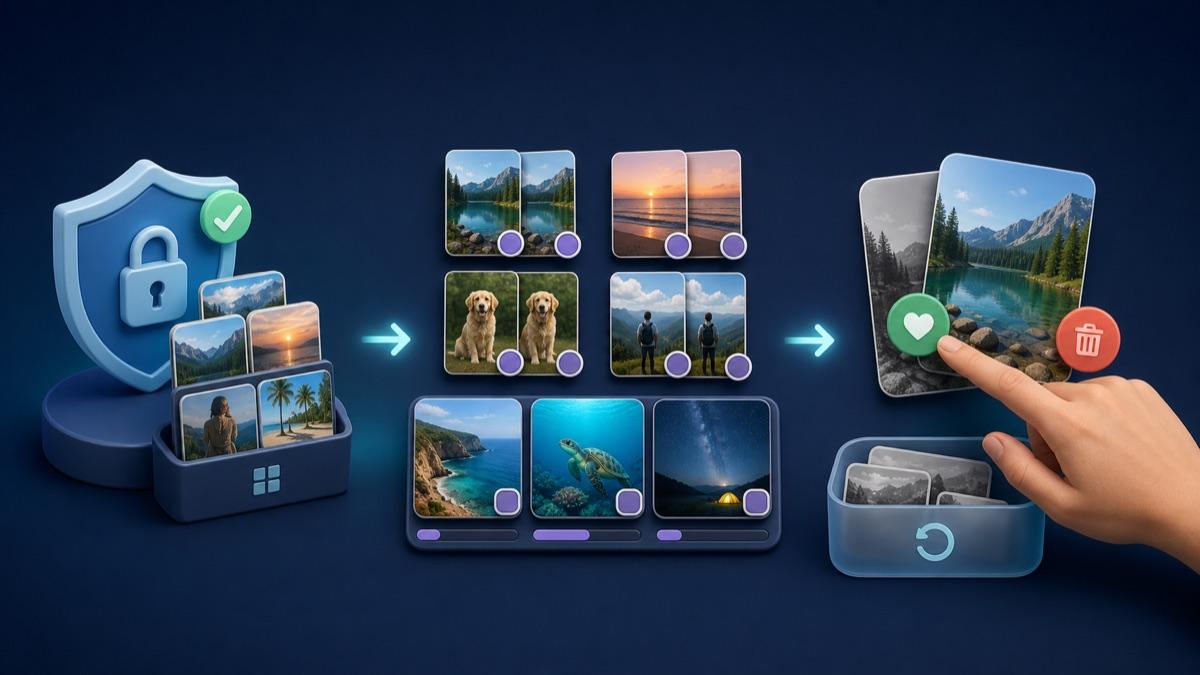
Pass 1: confirm backup and understand the storage target
Before deleting anything important, verify that recent photos have finished backing up to your chosen destination. Then decide whether you are trying to recover device storage, reduce cloud-account storage, or both. Those are different jobs.
Pass 2: remove objective clutter
Start with the least ambiguous candidates: exact duplicate files, old chat-media copies, accidental screenshots, and very large videos you have already saved elsewhere. Files by Google and Google Photos are useful at this stage because they surface defined categories rather than asking you to scan the entire library.
Pass 3: review subjective photos manually
Use Swipli, Slidebox, or Sponge for the decisions an automatic rule cannot make reliably: near-identical portraits, blurry but meaningful moments, travel sequences, receipts you still need, and screenshots that contain useful information. Work in one month or album at a time and stop when attention drops.
Finally, inspect your gallery’s Trash or Recycle Bin before emptying it. Retention behavior varies by gallery, Android version, backup state, and app, so confirm the current recovery window on your device instead of assuming every deletion can be reversed later.
Final recommendation
Start with Google Photos when backup and cloud storage are central, or Files by Google when exact duplicates and general device clutter are the main problem. Choose Swipli when you want a careful monthly review, Slidebox when album organization matters, or Sponge when a resumable, game-like workflow will help you finish.
The most effective setup may use two tools: an objective first pass for duplicates and large files, followed by a manual pass for photos that need human judgment. If you also clean an iPhone or iPad, our Swipli vs Apple Photos comparison explains how the iPhone workflow differs.
Frequently asked questions
What is the best photo cleaner app for Android?
There is no universal winner. Swipli suits deliberate manual review, Google Photos suits backed-up libraries, Files by Google suits exact duplicates and broad storage cleanup, Slidebox suits album sorting, and Sponge suits resumable swipe sessions.
Can Android photo cleaners delete the wrong photo?
Any deletion workflow can produce a mistake if you approve the wrong item or empty trash too early. Review every suggested group, keep known originals, confirm backup status, and inspect Trash before permanent deletion.
Is removing a device copy the same as deleting from Google Photos?
No. Google says “Free up space” removes backed-up copies from the device, while the photos remain available in Google Photos. Deleting from the Google Photos library affects cloud-account storage and follows a different recovery path.
Should I use an automatic cleaner or a swipe cleaner?
Use automatic recommendations for objective candidates such as exact duplicates and large files. Use a swipe cleaner for subjective choices such as similar portraits, sentimental photos, and screenshots whose value only you understand.