
If subscription reminders are not working on your iPhone, check three separate things: the saved renewal and reminder details, the app’s notification permission, and how iOS delivers alerts. A reminder can be correctly recorded but quiet or delayed; changing the renewal date is not the right way to fix that.
If a decision deadline is close, open the provider’s account and deal with the renewal directly. Do not wait for a troubleshooting check to protect an imminent deadline. This guide covers iPhone app notifications, not a promise that Apple or a provider will email you before every charge.
1. Identify what “not working” means
Start with one affected subscription and one expected alert. Look for the notification before changing settings. These observations point to different checks:
| What you noticed | What to check next |
|---|---|
| Nothing appeared anywhere | Saved reminder details, then Allow Notifications |
| An alert appeared, but there was no sound | Sound and silent-mode settings; do not diagnose this as a missing record |
| The alert appeared later or on another device | Scheduled Summary, Focus and a paired Apple Watch |
This is a routing checklist, not a diagnosis of your particular phone. Note what happened and change one setting at a time so you can tell whether it helped.
2. Check the saved reminder in Subpli
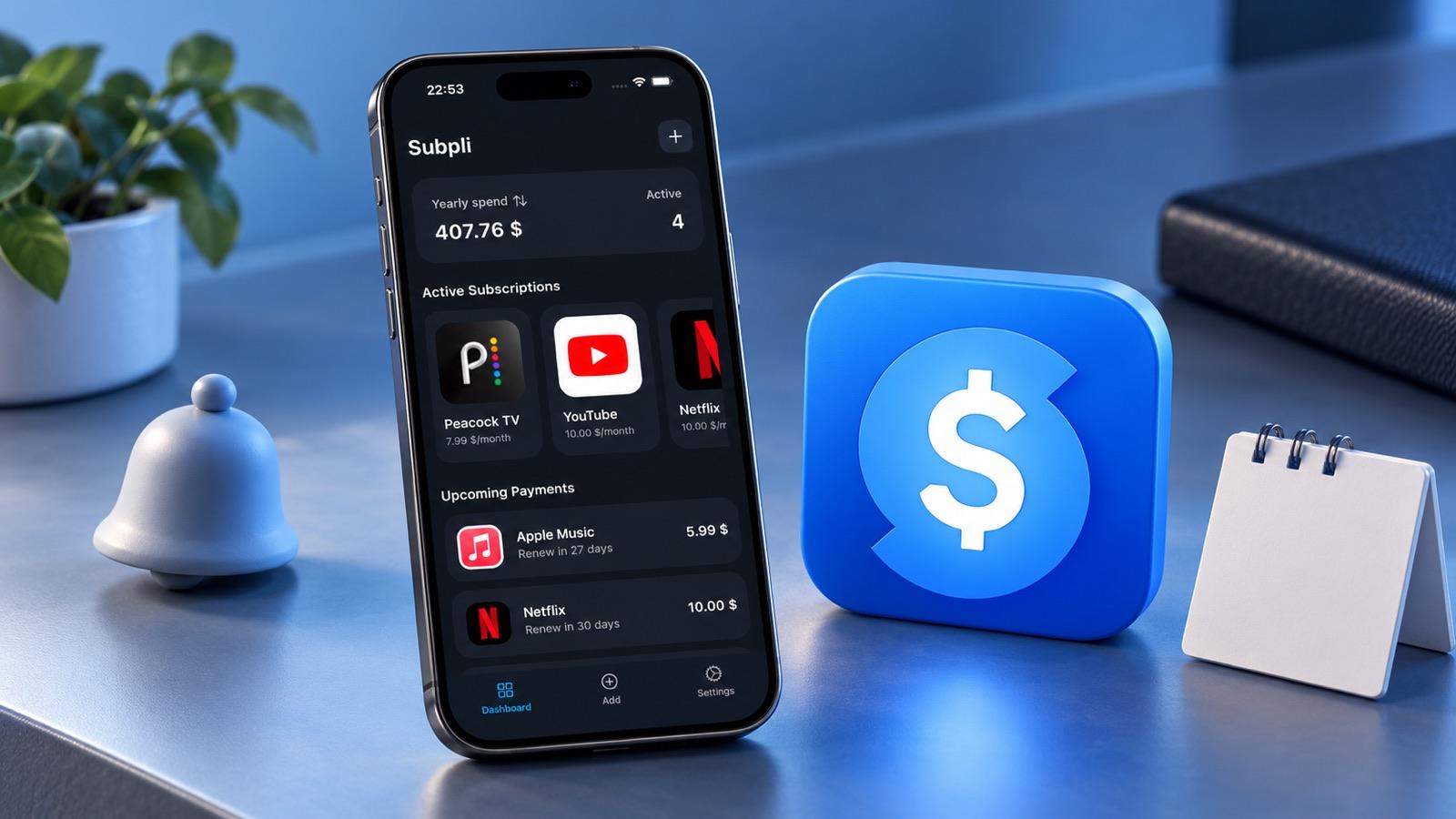
If you use Subpli, first compare the stored renewal details with the provider’s current confirmation. Subpli is made by Zappira, which publishes this guide. Its current official iPhone listing documents reminders one day, three days or one week before renewal, upcoming payments and notices when notifications are disabled.
Check the intended subscription, renewal date and selected reminder window. A one-day reminder and a one-week reminder do not refer to the same point in time. If that point has already passed, use a genuinely future reminder for your next observation; do not falsify a real billing date to manufacture a test. The product illustration shows Subpli’s real dashboard and official icon.
A notification-disabled notice is a reason to inspect iPhone permission; it is not proof that every other delivery setting is correct. This guide does not establish Subpli’s internal scheduling, retry behavior or support for Critical Alerts or Time Sensitive Notifications. No reminder app can guarantee that you will notice or act on an alert.
If a maintained subscription list with renewal reminders fits your needs, check Subpli’s current official listing. It is verified on iOS and Android; the Settings instructions below are for iPhone, not Android:
3. Allow notifications and choose where to see them
Follow Apple’s app-notification checklist: open Settings → Notifications, choose the affected app and turn on Allow Notifications. Select the alert locations you want, such as the Lock Screen, Notification Center or banners.
Permission and presentation are different. Allowing notifications does not mean you selected a banner or an audible sound. Conversely, hiding preview text is not the same as turning permission off. Apple’s notification-settings guide explains the separate controls. Labels and available options can differ by iOS version and app.
4. Check Focus and Scheduled Summary separately
For the Focus you actually use, open Settings → Focus → the relevant Focus → Apps. Inspect whether you are allowing selected apps or silencing selected apps. Add the reminder app to an allow list, or remove it from a silence list, if that matches your preferences. Apple documents both modes in its Focus app-notification guide. You do not need to disable every Focus to investigate one app.
Then check Scheduled Summary. Apple says that, when this feature is in use, an app’s Notification Delivery setting can offer Immediate Delivery or Scheduled Summary. For an alert you want when it arrives, choose Immediate Delivery if that option is shown. Review Settings → Notifications → Scheduled Summary for included apps and summary times. This is separate from an app’s saved reminder date.
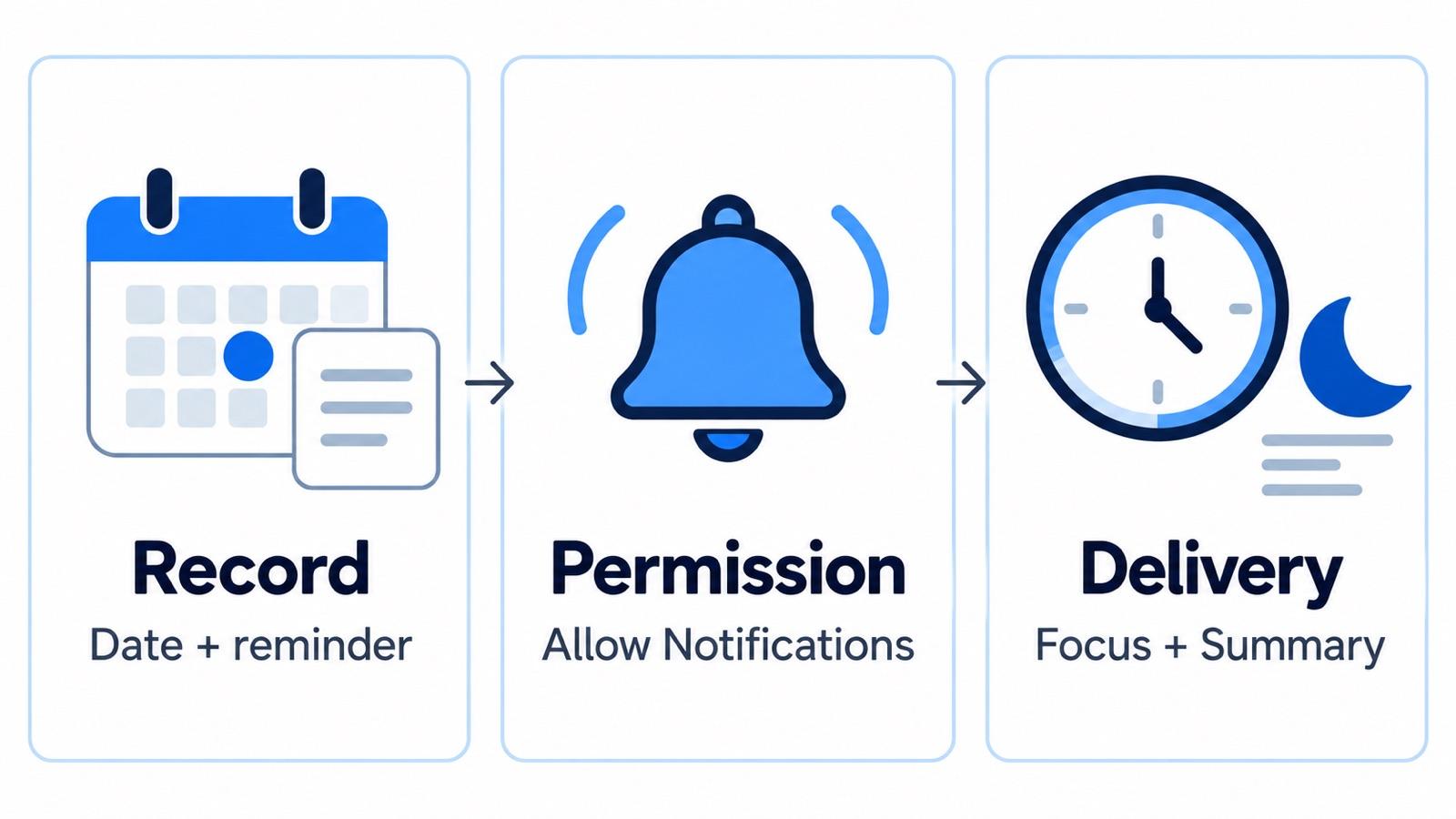
Do not assume that enabling a system option creates a reminder inside an app, or that a saved reminder overrides Focus. Work through both sides. Keep any settings you intentionally use for quiet time; choose a targeted change instead of turning everything off.
5. Check quiet delivery and a paired Apple Watch
If the alert is visible but silent, check the phone’s sound and silent-mode settings rather than editing the subscription. Apple notes that a silenced device will not sound a notification.
If you use Apple Watch, Apple’s delivery guidance says notifications normally go to the iPhone or Watch, not both. An unlocked iPhone receives them; a locked or sleeping iPhone normally routes them to an unlocked Watch. Reading or dismissing one on the Watch also dismisses it on the iPhone. Look there before concluding that no alert arrived.
6. Record one useful check before escalating
Observe the next genuinely scheduled reminder with the relevant settings recorded. This is a suggested troubleshooting method, not a claim that we tested delivery on your device or every iOS version. Until you are satisfied with the result, review upcoming renewals directly rather than relying on an alert alone.
- Expected: the saved renewal date, reminder window and expected alert point.
- Settings: Allow Notifications, chosen alert locations, active Focus, Summary choice and whether a Watch was paired.
- Observed: no alert, visible but silent, later delivery or Watch delivery—and when you checked.
- Support context: iPhone model, iOS version and app version, plus what changed between checks.
If the problem persists, give the app’s support channel that short record. Do not include passwords, full payment-card details or an unredacted account screen. Avoid deleting the app or resetting the phone as a first troubleshooting step when the cause is still unclear.
For initial trial-deadline planning rather than a missing alert, see our iPhone trial-reminder comparison. If you need to find a charge or manage a renewal now, use the forgotten-subscription audit and cancellation guide. An alert is a prompt to act, not cancellation itself.