

Choose Scany if you want readable receipt PDFs that you can organize and share. Choose Smart Receipts if you need receipt entries collected into customizable reports. Choose Expensify if you want receipt details extracted into an expense workflow. The important difference is the record you need after taking the picture.
These three receipt scanner apps for Android solve related but different problems. A PDF preserves a receipt’s appearance. An expense record stores information such as merchant, date and amount in fields. A report groups records for review or export. Do not assume that an app offering the first automatically provides the other two.
Android receipt apps compared by output
| App | Choose it for | Check before relying on it |
|---|---|---|
| Scany | A receipt PDF, with document names, folders and tags | Expense-field extraction and CSV reports are not verified |
| Smart Receipts | Receipt and distance entries grouped into reports; PDF, CSV and ZIP output advertised | Confirm the fields, layout and feature access you need |
| Expensify | SmartScan receipt details and personal or submitted expenses | Review extracted values; processing needs a connection and submission needs the right destination |
We selected these apps for three distinct downstream workflows, not as a camera-quality ranking. All three have accessible official Android listings. Features were checked against current developer listings and help pages on October 23, 2026; this is not a timed hands-on test. Check current product terms for feature access rather than choosing from a price claim that may change.
1. Scany: when the receipt itself is the record
Scany fits someone who wants a readable copy of a purchase receipt, not an expense-management system. Zappira makes Scany and publishes this roundup. Its current official Android listing documents camera capture, importing existing images, cropping and page review, multi-page arrangement, document renaming, folders, tags and PDF sharing.
Use this route when the task ends with finding or sending a document—for example, a receipt and its supporting purchase paperwork. Decide whether the recipient wants one purchase per file or a combined set. A small, clearly named PDF is useful only if you can retrieve it later. The product illustration below uses Scany’s real home-screen layout and official icon.
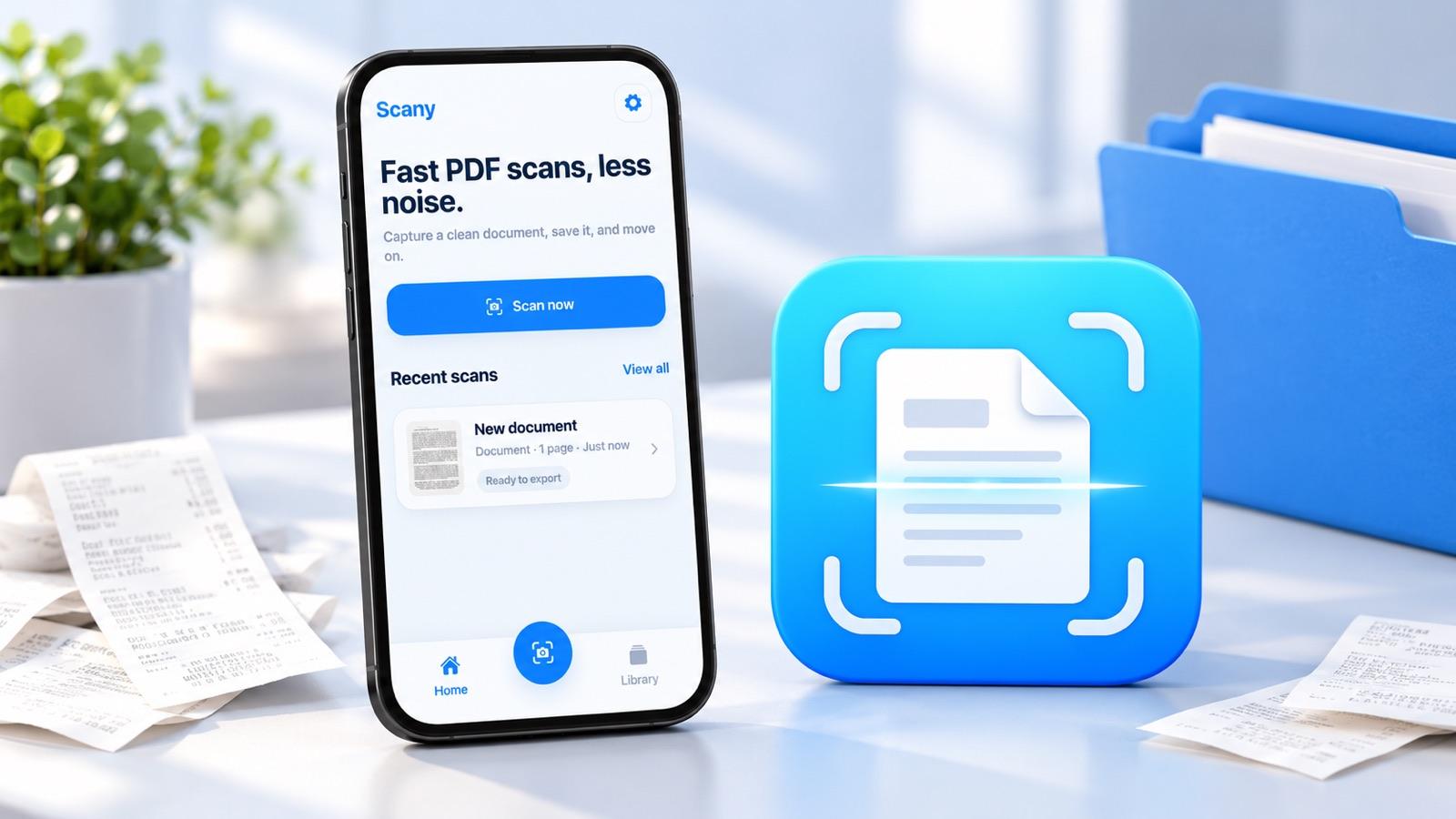
The limitation: merchant/total extraction, structured expense rows and CSV expense reports were not verified in Scany’s current official materials. Do not treat its PDF export as a bookkeeping or reimbursement feature. If those are the job, look at the next two workflows.
For a document-focused receipt routine, check Scany’s current official listing for your device. Scany is verified on Android and iOS; this comparison focuses on Android:
2. Smart Receipts: when several purchases need one report
Smart Receipts puts a report structure around receipt records. Its official Android listing describes receipt photos and imports, purchase fields such as price, tax and currency, categories, and customizable PDF, CSV and ZIP reports.
The developer’s workflow guide separates receipt entries, distance entries, reports and sharing. That is a relevant fit when you need a grouped trip or project record, or an output whose fields someone else will review. The illustration represents grouping records into a report; it does not reproduce Smart Receipts’ interface.
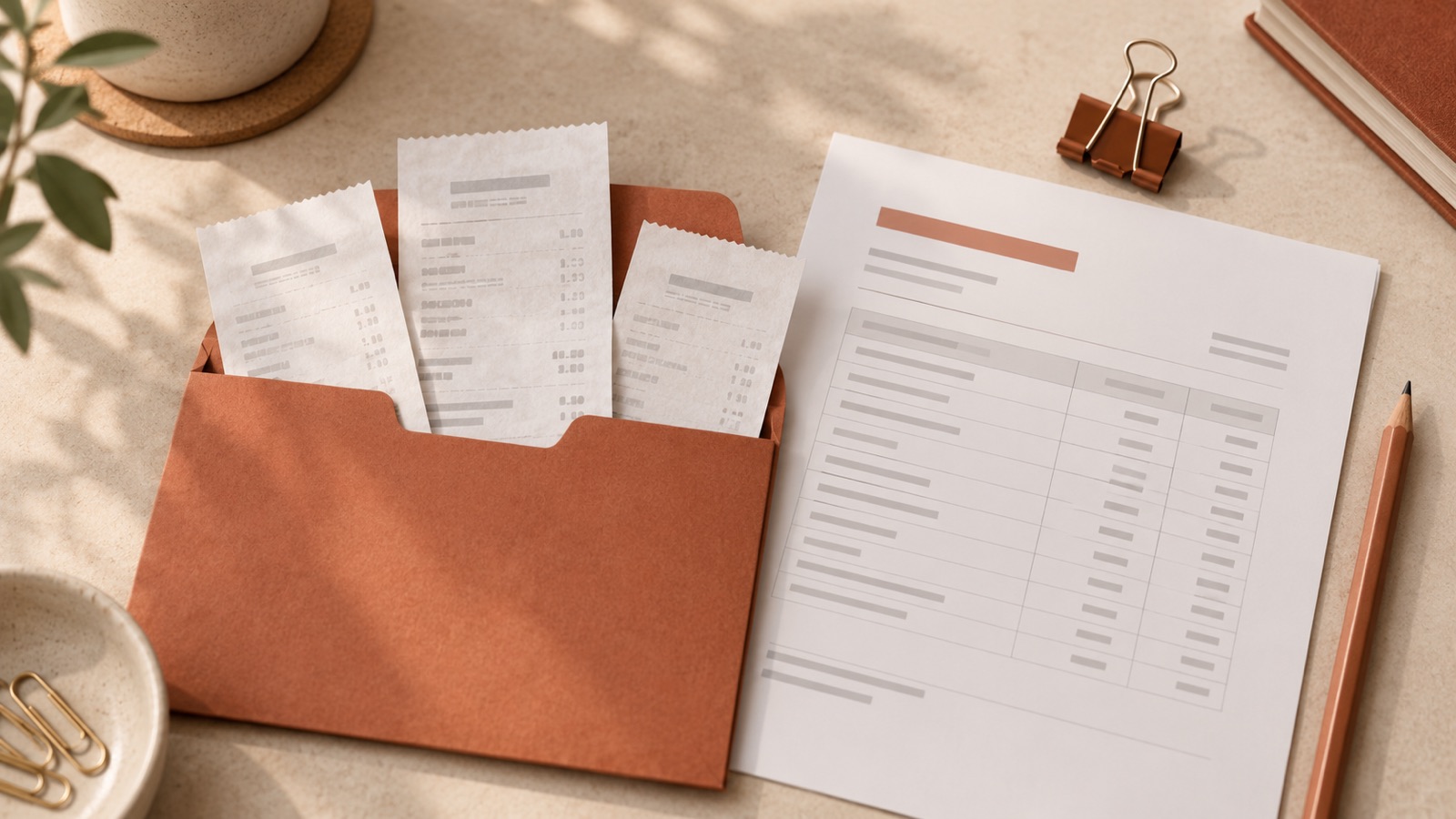
The tradeoff: you are maintaining structured entries, not just a folder of images. Check that categories, dates and currencies are correct and that the exported report contains the information you need. Confirm current access to the import, recognition and export features you intend to use; do not assume that every advertised capability has the same limits.
Choose Smart Receipts when the report is the deliverable. Test a sample export before moving an existing collection, especially if the recipient expects particular columns or supporting images.
3. Expensify: when receipt details must become expenses
Expensify’s SmartScan documentation says it reads receipt images and fills expense details such as amount, date and merchant. The same guide explains that unreadable or missing information can cause a scan to fail, and that incorrect values can be edited manually.
Its personal tracking guide also describes keeping an expense for your own records without submitting it. This distinction is useful: recording a purchase and sending it for approval are separate decisions. Its Android listing documents broader submission and approval workflows. The illustration emphasizes checking the record, not guaranteed recognition.
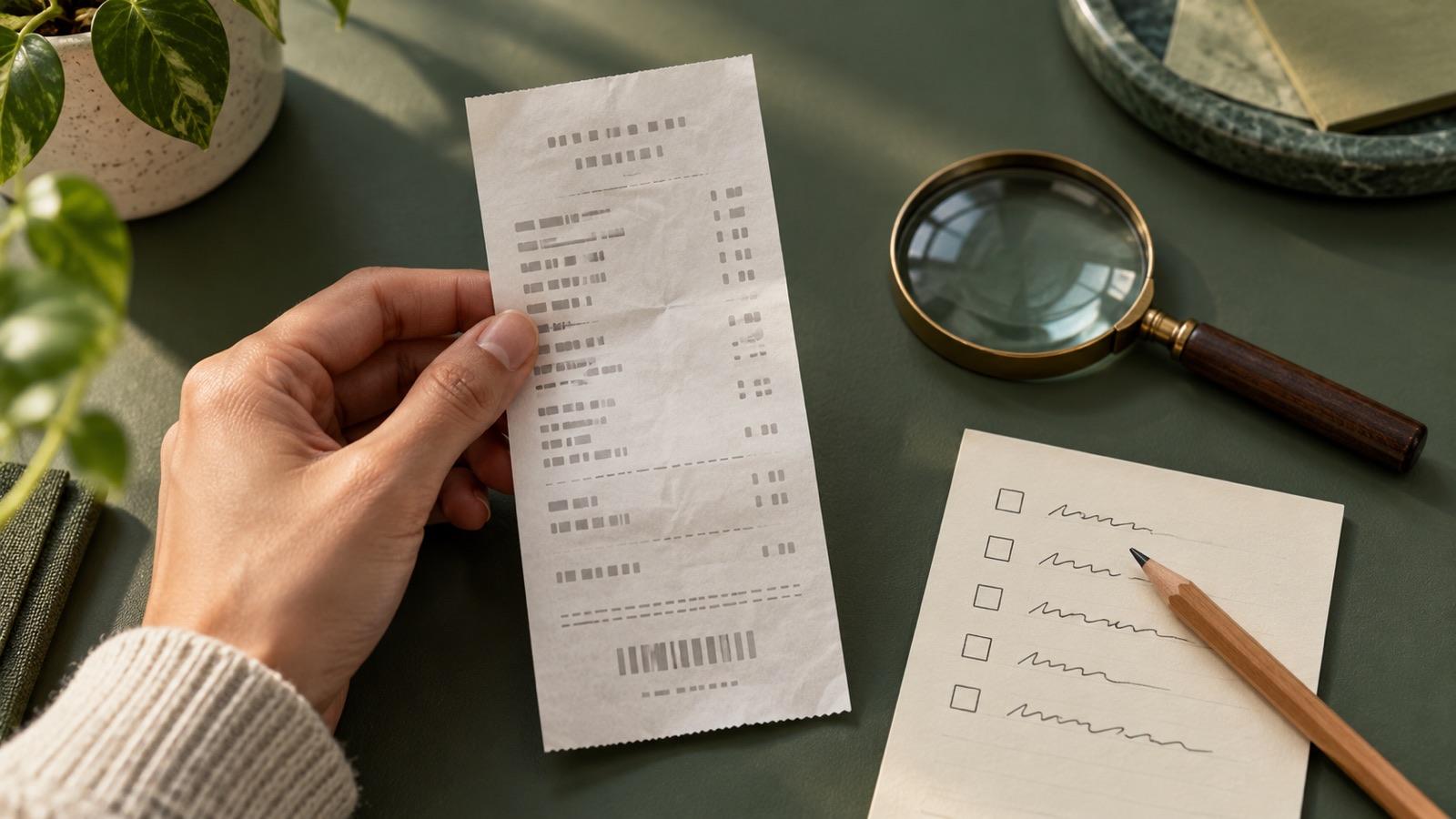
The tradeoff: SmartScan processing requires an active internet connection, according to the troubleshooting guide. A faded receipt, unusual format or handwritten detail can need correction. Check the image against the recorded amount, currency, date and merchant rather than assuming an extracted value is right.
Choose Expensify when you need expense records rather than just PDFs, especially if you will use its wider workflow. If a workplace requires another system or a particular report format, confirm that requirement before choosing an app or submitting anything.
Use three receipts to test the result, not just the camera
Before moving a backlog, try a clear printed receipt, a longer receipt and a receipt with a handwritten addition or awkward formatting. This is a proposed acceptance test for your own evaluation, not a claim that we tested these apps with the same documents. Use records you are comfortable storing in the chosen service.
| Check | PDF-focused route | Expense/report route |
|---|---|---|
| Image completeness | Can you read the full receipt after reopening the exported file? | Can you still open the supporting receipt image from the record or output? |
| Meaning | Does the name identify the correct purchase? | Do merchant, date, currency and final total match the image, including any added amount? |
| Destination | Can you retrieve and share the intended PDF? | Does a sample report contain the required fields and arrive at the intended destination? |
If one value looks wrong, return to the source receipt. Do not fix a mismatch by guessing from the filename, a similar purchase or the app’s suggested category. Keep the original whenever the recipient requires it; an app feature list does not determine which evidence they accept.
For the practical capture-and-filing routine, use our guide to scanning and organizing receipts. If you need general document OCR, PDF editing or automatic export destinations rather than receipt records, see the broader PDF scanner app comparison.
Which receipt app should you choose?
- Scany: your end product is a readable, organized PDF.
- Smart Receipts: your end product is a grouped, customizable report.
- Expensify: you want extracted receipt details in an expense workflow, with the option to track personally or use a submission process.
Start with the output you need and a small sample. The right receipt app is the one that produces a record you can read, find and use—not simply the one that takes a picture fastest.