
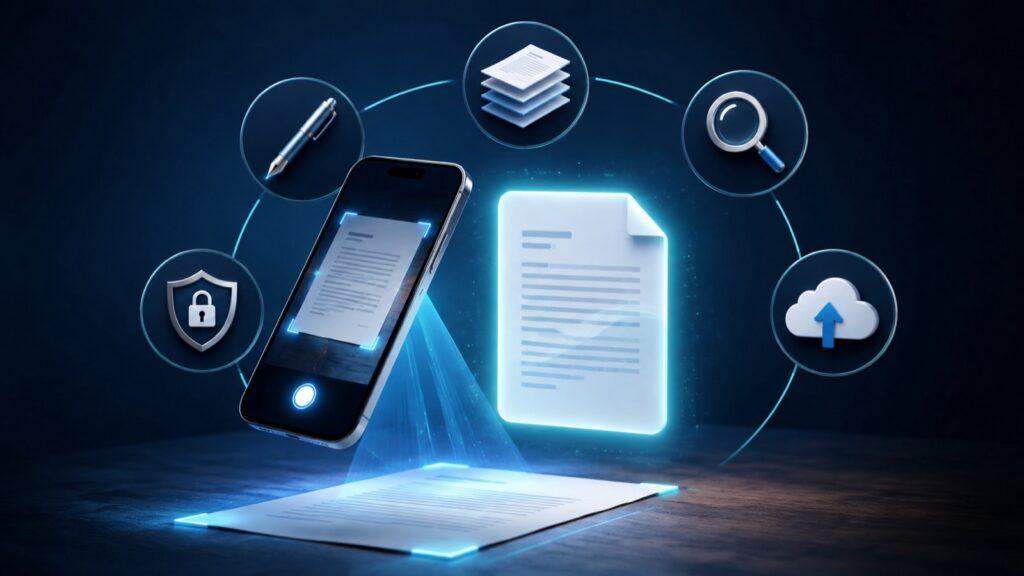
The best PDF scanner app depends on what should happen after you photograph a page. Choose Scany for a focused capture, multi-page organization, and PDF export workflow; Adobe Scan for OCR and Adobe tools; Genius Scan for batch scanning and export automation; SwiftScan for cloud-destination workflows; or CamScanner for a broad PDF editing toolkit.
This guide compares current, officially documented features—not ratings, download counts, or unverified hands-on claims. Start with the job you need to finish: creating a clean PDF, making text searchable, sending files to a specific service, or editing and signing after capture.
Best PDF scanner apps at a glance
| App | Best for | Platforms | Standout workflow | Important limitation |
|---|---|---|---|---|
| Scany | Focused scanning and organized PDF export | iPhone, iPad, Android | Auto-detect, enhance, combine, reorder, organize, export | Its official listings do not advertise OCR |
| Adobe Scan | OCR and Adobe document workflows | iPhone, iPad, Android | Searchable text, cloud access, Acrobat handoff | Some advanced capabilities require a paid plan |
| Genius Scan | Batch capture and flexible exports | iPhone, iPad, Android | Batch scanning, tags, many destinations, automation | OCR, sync, and automation depend on the selected tier |
| SwiftScan | Automatic cloud filing | iPhone, iPad, Android | High-quality capture, OCR, automatic upload destinations | Feature availability varies by platform and plan |
| CamScanner | All-in-one PDF tools | iPhone, Android | OCR, conversion, editing, signing, and sharing | The larger toolset can be more than a simple scan needs |
Short answer: Scany is the most direct choice here when you primarily want to turn paper or photos into organized multi-page PDFs. Choose a more complex alternative when searchable text, automated cloud delivery, cross-device document work, or extensive PDF editing is the deciding requirement.
How to choose before installing anything
A scanner app is really a workflow decision. The camera step is similar across this list; the meaningful differences appear after capture. Use these four questions:
- Do you need OCR? OCR turns the words in a scan into searchable or reusable text. A clear-looking PDF is not automatically searchable.
- Where should files go? Decide whether manual sharing is enough or whether documents must move automatically to a cloud folder or business service.
- How much PDF work happens afterward? Reordering pages is different from converting formats, redacting content, filling forms, or signing.
- Are you scanning one page or a backlog? Batch capture, naming rules, tags, and automatic export become more important as volume grows.
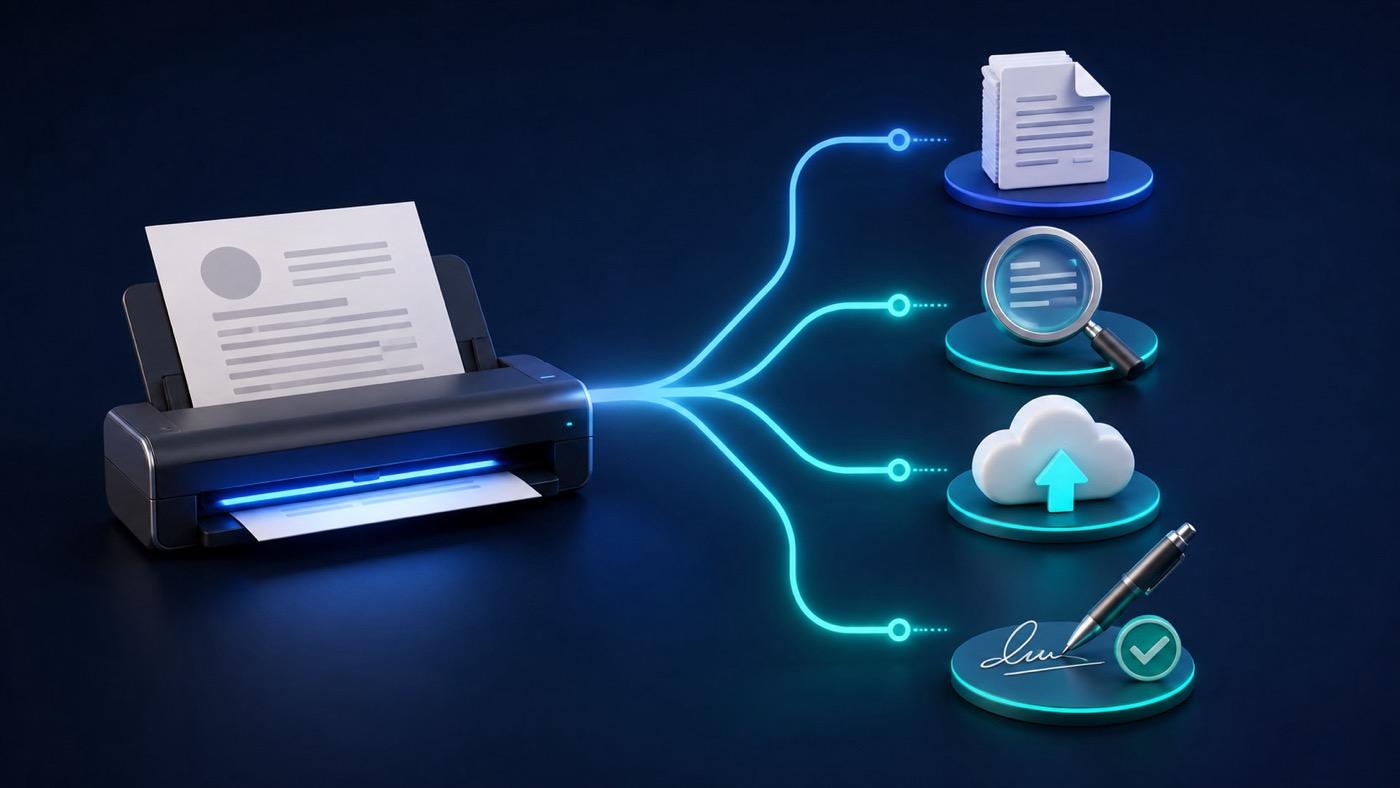
If your answer is simply “make a readable PDF and keep it organized,” a focused scanner is easier to live with. If your answer includes text extraction, automatic routing, approvals, editing, or signatures, prioritize the app that supports that next step.
1. Scany: best for focused scanning and organized PDF export
Scany is the clearest fit for someone who wants to capture documents, assemble pages, organize the result, and export a PDF without adopting a wider document-management system. Scany is made by Zappira, which publishes this roundup; that relationship does not change the criteria or the limitations stated here.
Its current official listings describe automatic document detection, edge and perspective correction, automatic or manual capture, and Clear, Bright, and Office enhancement modes. You can import images, scan QR codes, add or remove pages, change page order, combine images into a document, choose export quality, and share as PDF.
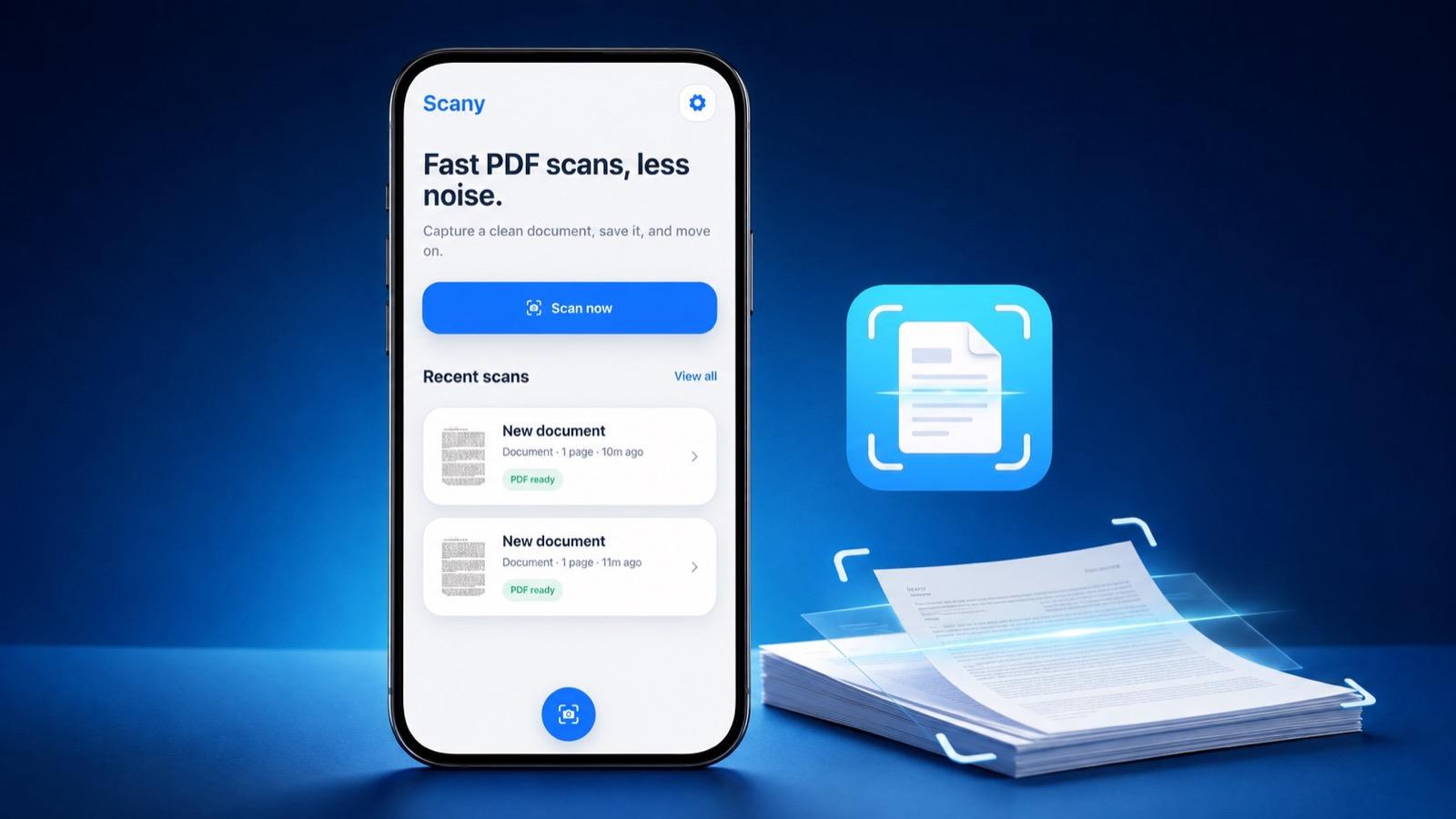
Folders, tags, and a recent-document view help separate work papers, receipts, forms, and personal records. That makes Scany more useful than a one-off camera scan while keeping the workflow centered on capture and PDF output.
Choose it if: you want a straightforward scanner on iPhone, iPad, or Android, need multi-page control, and prefer to organize documents before sharing them.
Limitation: Scany’s current official pages do not advertise OCR or searchable-text extraction. If copying text from scans is essential, Adobe Scan, Genius Scan, SwiftScan, or CamScanner is the more suitable direction.
See our focused Adobe Scan vs Scany comparison if OCR is the deciding factor, or follow the multi-page PDF guide for iPhone for a step-by-step capture workflow.
2. Adobe Scan: best for OCR and the Adobe ecosystem
Adobe Scan is the stronger choice when the document’s text matters as much as its appearance. Its current official listings describe automatic border detection, cleanup, page reordering, OCR, searchable and editable text, custom folders, password-protected sharing, and automatic saving to Adobe Document Cloud.
The handoff to Acrobat Reader is its main advantage. After scanning, you can continue into commenting, highlighting, filling, and signing workflows. Current listings also describe export to Word, Excel, and PowerPoint, although capability and usage limits can depend on the plan.
Choose it if: you need searchable text, already work with Acrobat, or want scans available across Adobe’s document tools.
Limitation: automatic Adobe cloud storage and plan-dependent features may be unnecessary if you only need local organization and ordinary PDF sharing. Check the current Apple listing or Google Play listing for the limits that apply to your device and region.
3. Genius Scan: best for batches, organization, and export automation
Genius Scan is designed for people who scan often and care about the route out of the app. Its official materials list document detection, background removal, distortion and shadow correction, batch scanning, multi-page PDF creation, merging and splitting, tags, metadata search, and naming templates.
Export support is unusually broad: the current listing names email, Google Drive, OneDrive, Box, Dropbox, Evernote, Expensify, FTP, and WebDAV. OCR can extract text and create searchable PDFs, while automatic export and multi-device sync are available through selected tiers.
Choose it if: you process repeated batches, need reliable naming and filing, or must deliver scans to a specific storage or business service.
Limitation: several workflow features—including OCR, sync, and automated export—depend on the selected tier. Confirm the current details on the Apple listing or Google Play listing before choosing it for a recurring business process.
4. SwiftScan: best for automatic cloud destinations
SwiftScan emphasizes high-quality automatic capture and what happens immediately afterward. Its official feature pages describe edge detection, perspective correction, color optimization, multi-page scanning, OCR, searchable PDFs, and uploads to cloud services or designated folders.
This is a practical fit when every receipt should land in one storage folder or every signed form must follow the same route. PDF annotation, signing, redaction, and sharing tools broaden the workflow beyond basic capture.
Choose it if: automatic delivery to a cloud destination matters more than maintaining the simplest possible interface.
Limitation: specific tools and destinations vary by platform and plan. Verify the workflow you need on the current Apple listing or Google Play listing.
5. CamScanner: best for a broad PDF editing toolkit
CamScanner covers the widest post-scan toolset in this comparison. Current official listings describe smart cropping and enhancement, OCR, document search, multi-page scanning, format conversion, PDF merging and splitting, compression, annotations, signatures, watermarks, sharing, and cross-device access.
That breadth suits people who want one mobile workspace for scanning and later PDF tasks. It can reduce the need to move between separate capture, conversion, and signing apps.
Choose it if: you regularly edit, convert, sign, or manage PDFs after scanning.
Limitation: the broader interface and plan-dependent tools can add complexity to an occasional scan. Confirm platform support and included capabilities on the current Apple listing or Google Play listing.
When your phone’s built-in scanner is enough
You may not need a dedicated app for an occasional form. Apple documents scanning inside Notes and Files, including page capture, corner adjustment, additional pages, and saving or signing a PDF. Google Drive supports document scanning on Android and iOS, with crop, filter, cleanup, and multi-page controls.
A dedicated scanner earns its place when you need repeatable organization, specialized enhancement, OCR, naming rules, batch capture, automatic delivery, or deeper PDF tools. Test the built-in option first if none of those requirements applies.
A five-minute scanner app test
- Scan one clean printed page and one page in uneven light.
- Scan a three-page document and deliberately capture one page out of order.
- Correct the edges, reorder the pages, and compare the enhancement modes.
- Export the result to the destination you actually use—not a temporary test folder.
- Open the exported PDF on another device and check readability, page order, file size, and searchable text if OCR matters.
This small test exposes more than a long feature list. It shows whether the app handles your lighting, documents, destination, and after-scan needs with acceptable effort.
Frequently asked questions
Which PDF scanner app is best for OCR?
Adobe Scan is the clearest OCR-first choice in this list because its current official materials emphasize searchable and editable text plus integration with Acrobat. Genius Scan, SwiftScan, and CamScanner also advertise OCR, but access and limits can vary by plan.
Which scanner app is best for simple multi-page PDFs?
Scany is a strong fit when the goal is to capture several pages, reorder them, organize the document with folders or tags, and export a PDF without requiring an OCR-centered workflow.
Do scanner apps create searchable PDFs automatically?
Not always. A scanner can improve an image and package pages into a PDF without recognizing the words. Look specifically for OCR or searchable-PDF support, then check any page limits or plan requirements.
Are iPhone and Android versions identical?
Do not assume they are. The main scanning workflow is often similar, but export destinations, integrations, plan options, and update timing can differ. Verify the listing for the device you will use.
The bottom line
Choose the smallest workflow that completes the real job. Scany is the focused pick for capturing, arranging, organizing, and exporting PDFs. Adobe Scan leads when OCR and Acrobat matter. Genius Scan is built for batches and export routes, SwiftScan for automated destinations, and CamScanner for a larger editing and conversion toolkit.
Try Scany on the platform you use and verify its current details on the official store listing.