
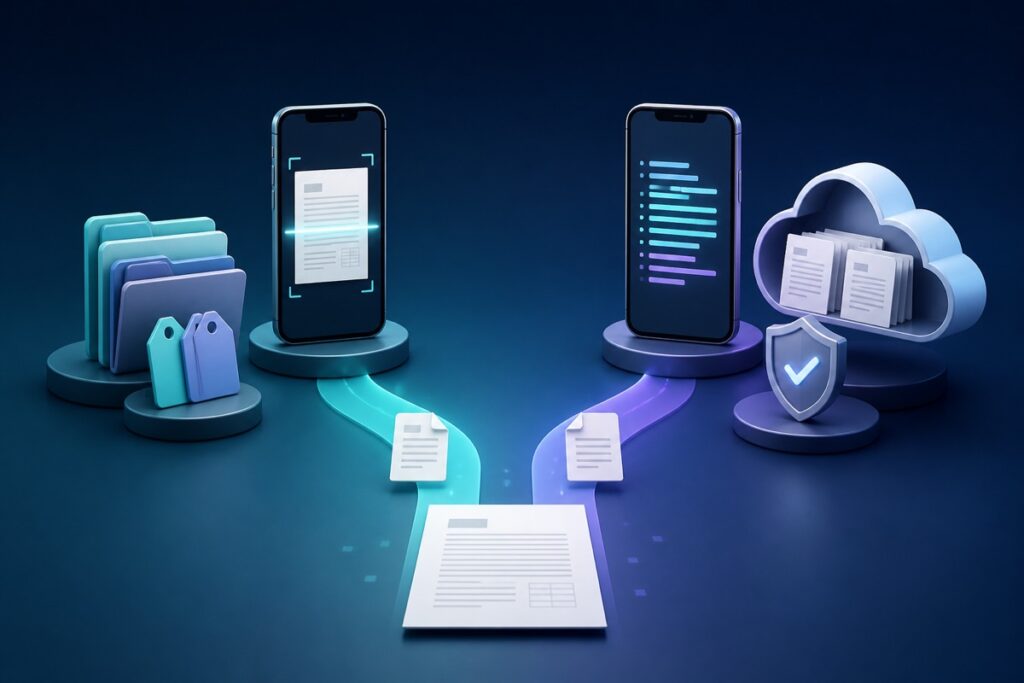
Choose Scany if you want a focused PDF scanner with no required account and your main job is capturing, arranging, organizing, and sharing PDFs. Choose Adobe Scan if searchable text, Adobe cloud access, advanced cleanup, Office-format exports, or a broader PDF workflow matter more than account and premium-feature tradeoffs.
Both apps cover everyday document capture on iPhone and Android, but they are built around different priorities. Scany keeps the workflow deliberately simple. Adobe Scan connects scanning to OCR, cloud storage, Acrobat, and paid document tools.
Adobe Scan vs Scany at a glance
| Decision point | Scany | Adobe Scan |
|---|---|---|
| Best for | Simple capture, multi-page PDFs, folders, tags, and direct sharing | OCR, searchable documents, cloud access, and advanced PDF tools |
| Account | Current Google Play listing says no account is required | Adobe says sign-in is needed for online services, subscription features, and cloud storage |
| Cloud workflow | No built-in cloud-sync feature is advertised in the current official listings; export and share the PDF where you choose | Scans are automatically saved to Adobe Document Cloud |
| OCR | Not advertised in the current official listings | Recognizes text and creates searchable or editable scans |
| Organization | Rename documents and use folders, tags, and recent scans | Custom folders plus access across Adobe cloud, Scan, Reader, and Acrobat |
| Platforms | iPhone, iPad, and Android | iPhone, iPad, and Android |
This comparison uses current official store listings and Adobe documentation. It does not assume that a feature exists unless the developer currently describes it.
The main difference: a scanner app or a connected PDF system
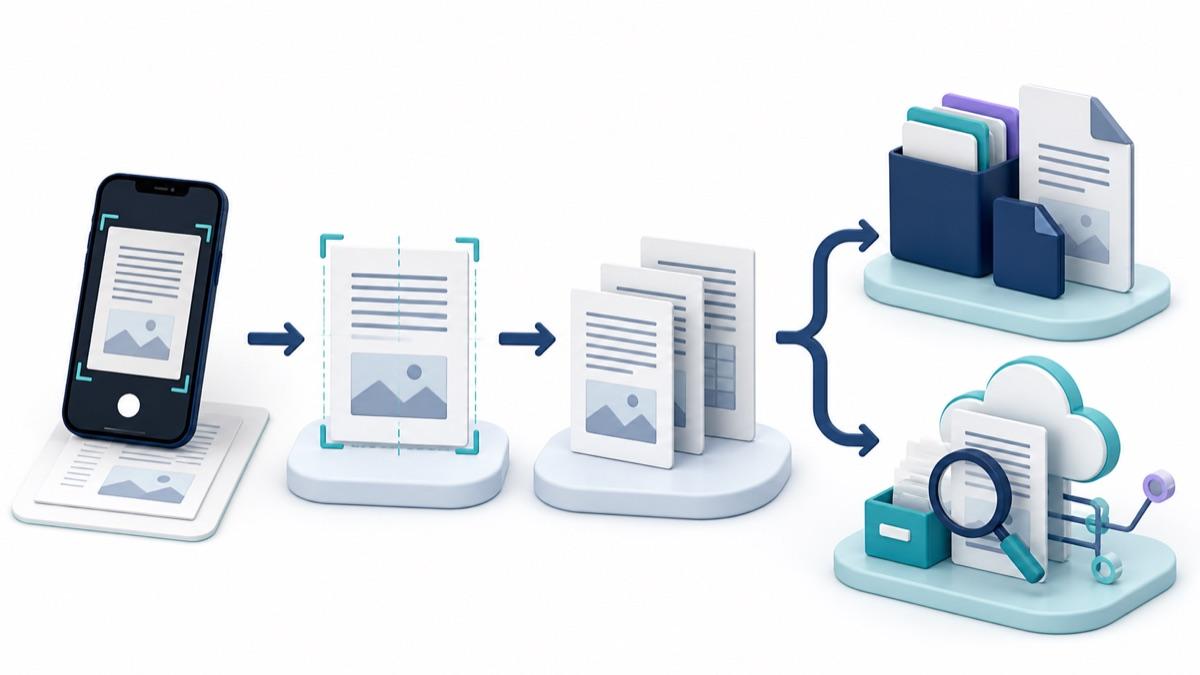
Scany is the more focused tool. Its current listings describe camera capture and photo import, automatic document detection, crop and perspective correction, enhancement modes, multi-page arrangement, folders, tags, and PDF export. Those features cover the common path from paper to a clean, organized PDF.
Adobe Scan is part of a larger document system. Adobe’s official scanner page emphasizes OCR, searchable PDFs, scan cleanup, Adobe cloud access, and connections to Acrobat. That breadth is valuable when a scan is the beginning of a longer editing, conversion, or collaboration workflow.
The practical choice is not which app has the longest feature list. It is whether you need a clean PDF at the end of scanning or expect to keep processing its text and pages afterward.
Capture and multi-page PDFs
Both apps support document detection, page correction, photo import, multiple pages, reordering, and PDF output. Either can handle receipts, forms, notes, book pages, IDs, and other everyday documents.
- Scany: choose automatic or manual capture, adjust crops, use Clear, Bright, or Office enhancement modes, add or remove pages, reorder them, and choose an export quality.
- Adobe Scan: use border detection, Straighten, brightness and contrast controls, page reordering, and specialized tools such as Magic eraser. Adobe labels some high-speed, cleanup, and editing features as premium.
Feature descriptions cannot prove which camera result will look better on your specific phone, lighting, paper, or handwriting. Scan one representative page in each app and inspect small text, shadows, page edges, and file size before moving a large archive.
Account and cloud storage
This is the clearest workflow difference. Scany’s current Google Play listing says you can organize a scan library without creating an account and that no account is required. Its official listings do not advertise built-in cloud synchronization, so plan to export or share files to your preferred destination when you want an external copy.
Adobe’s current Adobe Scan sign-in documentation says sign-in enables free features that use online services, subscription features, and automatic saving to Adobe cloud storage. The current store listings also say scans are automatically saved to Adobe Document Cloud for access and sharing.
- Choose Scany when avoiding account setup is important and you are comfortable managing exported PDFs yourself.
- Choose Adobe Scan when automatic cloud access and continuity with Adobe tools are useful rather than unwanted.
OCR and advanced PDF tools
OCR changes a scan from an image of words into text that can be searched, copied, or edited. Adobe Scan explicitly advertises OCR and searchable documents. Its listings also describe exporting to Word, Excel, or PowerPoint and working with Acrobat tools.
Scany’s current official listings do not advertise OCR. Do not choose it expecting searchable text or text extraction unless the developer adds and documents that feature later. Scany is a better fit when the PDF itself is the deliverable.
Adobe’s current premium-feature documentation lists file combining, export to other formats, password protection, scan editing, increased OCR limits, compression, high-speed scanning, and text editing among paid tools. Check the exact offer shown on your device because pricing and availability can differ by country and billing plan.
Organization and sharing
Scany provides a compact in-app library: rename documents, place them in folders, add tags, and return to recent scans. That is enough for a personal collection of receipts, forms, study notes, or household paperwork.
Adobe Scan also offers folders, but its stronger advantage is ecosystem continuity. The official listings describe opening scans in Acrobat Reader, accessing files across Scan, Reader, Acrobat, web, and mobile, and sharing through Adobe’s cloud workflow.
If you only need to email, save, or upload a completed PDF, Adobe’s extra layers may not add value. If teammates or devices already rely on Adobe services, the connected workflow may save more time than a simpler scanner.
Privacy and data-safety labels
Do not equate “no account” with “no data processing.” Google Play’s current Data safety label for Scany says no data is shared with third parties and that app information, performance data, and device identifiers may be collected. Adobe Scan’s current Google Play label says app information and performance may be shared, and personal information and app activity may be collected. These are developer-provided store labels, not independent audits, and they may change.
For sensitive IDs, financial records, health documents, or contracts, read the current privacy policy and store label before scanning. Also decide whether automatic cloud storage matches the document’s handling requirements.
Where Scany fits
Scany is made by Zappira, which publishes this article. Its honest advantage is simplicity, not feature parity with Adobe: it focuses on capture, cleanup, multi-page PDFs, organization, and sharing without advertising OCR or a connected cloud suite.
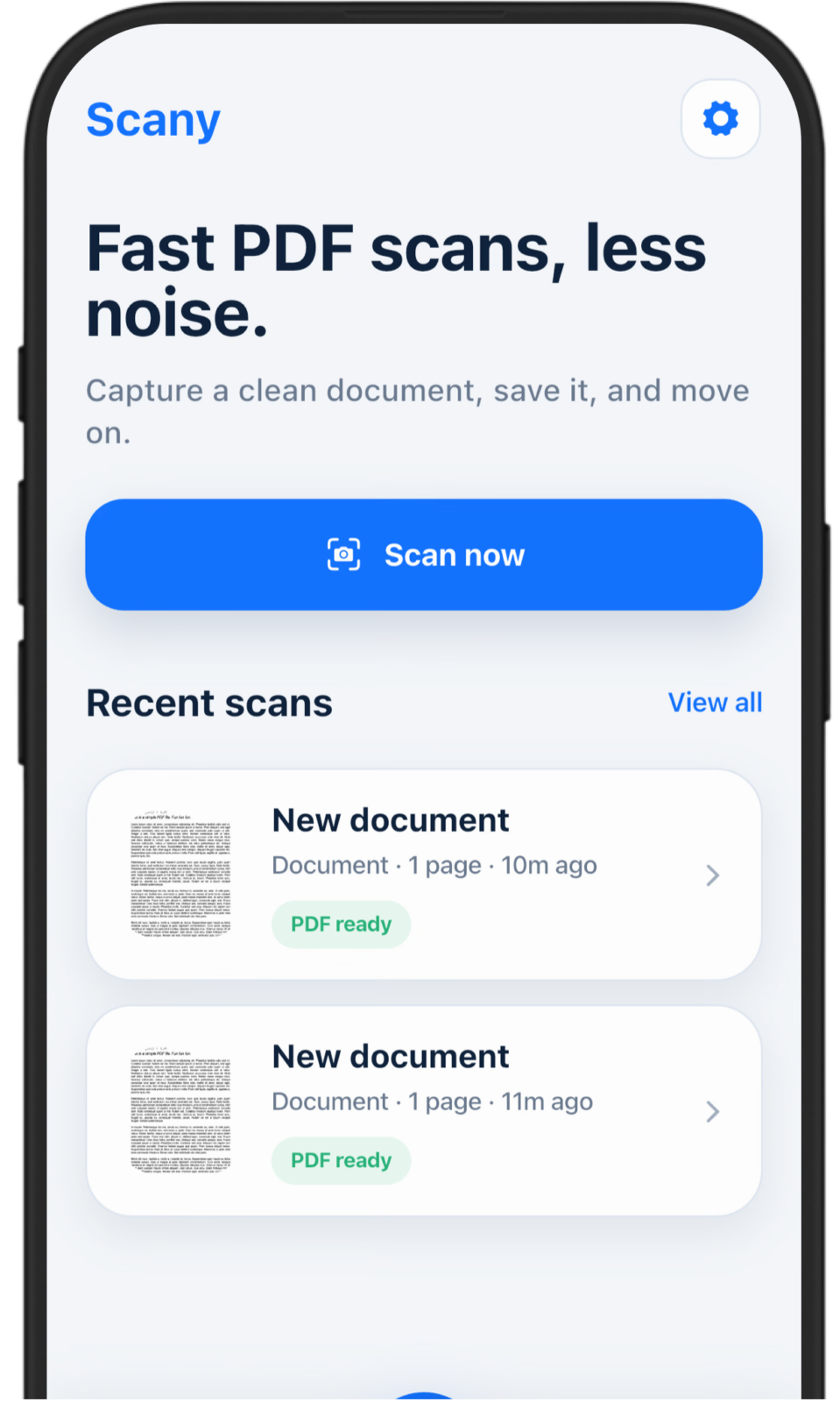
Choose Scany when: you want a direct path from paper or photos to an organized PDF, prefer no required account, do not need OCR, and want the same core scanner on iPhone, iPad, and Android.
Download Scany from the verified store for your device.
Where Adobe Scan fits
Choose Adobe Scan when OCR, searchable text, Adobe cloud storage, Acrobat integration, business-card extraction, advanced cleanup, password protection, compression, or conversion to other document formats is part of your regular workflow. Review the current Adobe Scan App Store listing or Adobe Scan Google Play listing to see which features are free or premium on your device.
Adobe Scan is the stronger choice for a document that must become searchable, editable, reusable, or available throughout an existing Adobe workflow. It is less attractive when you only need a basic PDF and want to avoid account and cloud dependencies.
A five-minute test before moving your documents
- Choose one representative page with small text, a table, and a shadow near an edge.
- Scan it in both apps under the same lighting.
- Check edge detection, perspective, readability, color, and file size.
- If OCR matters, search for a phrase and copy a sentence from the Adobe scan.
- Create a three-page document, reorder one page, export it, and open the PDF outside the scanner.
- Confirm where the file is stored and whether that location meets your backup or privacy needs.
If your main task is combining pages on iPhone, our guide to scanning multiple pages into one PDF compares the built-in Notes and Files workflows with Scany.
Final recommendation
Scany is the better choice for a straightforward scanner with no required account and a focused PDF workflow. Adobe Scan is the better choice for OCR, automatic Adobe cloud storage, and advanced document processing.
Neither choice is universally better. Pick the smaller workflow that completes the actual job: an organized PDF you can share, or a searchable document that continues into a cloud PDF system.
Frequently asked questions
Does Scany require an account?
Scany’s current Google Play listing says no account is required. Account requirements can change, so review the current store listing for your platform before installing.
Does Scany have OCR?
Scany’s current official product page and store listings do not advertise OCR. Choose Adobe Scan or another documented OCR tool when you need searchable or editable text rather than a clean PDF image.
Is Adobe Scan free?
Adobe Scan is free to download and includes scanning features, but its store listings show in-app purchases. Adobe documents advanced features such as file combining, format export, password protection, compression, high-speed scanning, editing, and increased OCR limits as premium.
Does Adobe Scan require an Adobe account?
Adobe’s current help page says sign-in is needed for free features that use online services, subscription features, and automatic saving to Adobe cloud storage. It accepts an Adobe ID and supported third-party sign-in methods.
Which app is better for sensitive documents?
That depends on your organization’s storage, account, encryption, retention, and sharing requirements. Review the current privacy policy and store data-safety label, confirm where files are saved, and do not scan restricted material into any app without authorization.