

You can play mini games on Android without installing every game as a separate app in three practical ways: use Android’s Instant Games when your phone supports them, play through a mobile browser, or install one all-in-one game hub. The right option depends on whether you want zero app installs, a single organized library, or limited offline access.
The important distinction is that “no download” can mean two different things. A browser or supported Android Instant Game may require no traditional app install, while an all-in-one hub requires one installation but avoids a separate installation for every included game.
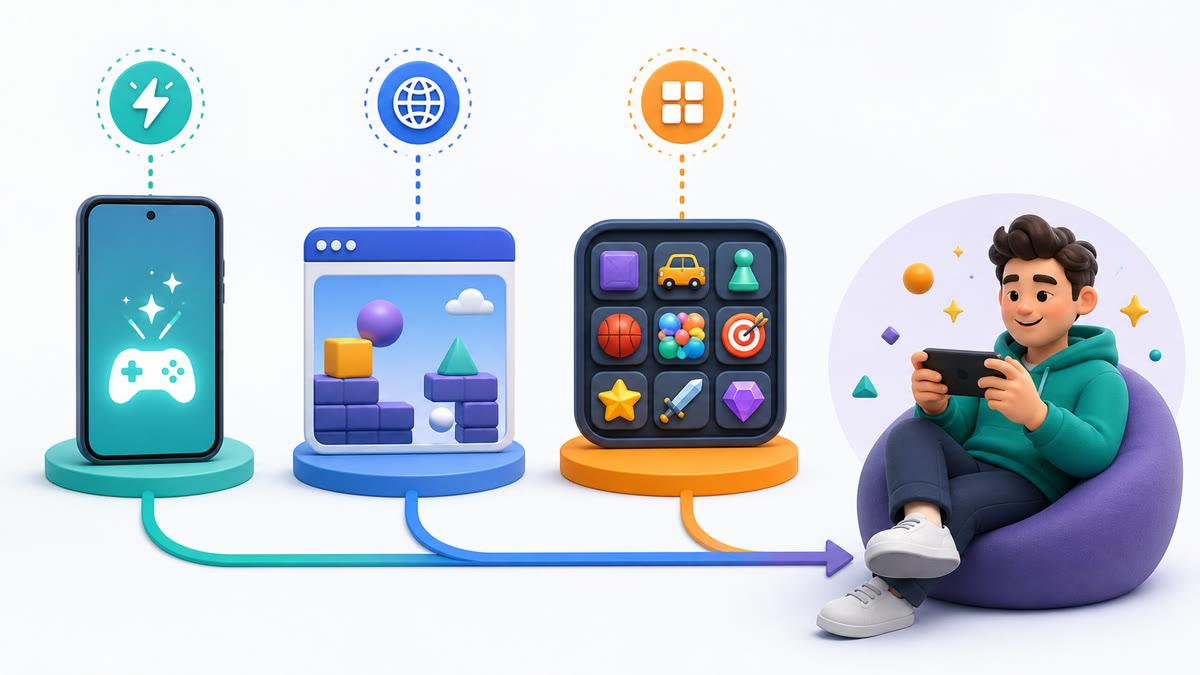
Three ways to play mini games without separate installs
| Method | What you install | Best for | Watch for |
|---|---|---|---|
| Android Instant Games | Nothing extra on supported phones | The fastest built-in option | Only available on select devices; offline support is limited |
| Mobile browser games | No game app | Trying a game quickly from a link | Site quality, ads, accounts, and data use vary |
| All-in-one game hub | One hub app | Browsing many genres from one place | The hub still occupies storage and may contain ads |
Method 1: check whether your Android phone has Instant Games
Google’s current Android Instant Games instructions describe browser-based games built into select Android devices. This is the closest option to playing without installing an app at all.
- Touch and hold an empty area on your Android home screen.
- Open Home settings.
- Look for Add Instant Games and turn it on.
- Open the Instant Games tab and choose a title.
If the setting and tab are missing, Google says the feature is not supported by that phone model. Do not keep searching through unrelated menus; move to the browser or all-in-one hub method instead.
Offline access is also specific. On recent supported versions, Enable offline saving can keep up to three recently played games below 10 MB, but a game must first be played online. Look for Google’s “Available offline” indicator rather than assuming every Instant Game works without a connection.
Method 2: play mini games in your browser
A mobile game website can be the quickest way to try something once. Open the page in Chrome or another browser, choose a game, and play inside the tab. This avoids a game-app installation and keeps your app drawer uncluttered.
Browser play is not automatically the lightest or safest choice. The game still loads data, the site may store browser files, and ad or privacy practices vary by provider. Before continuing, check that the address is HTTPS, avoid pages that demand notification permission before play, and do not enter payment or account details on an unfamiliar site.
- Choose this method when you want to try one game with no app install.
- Avoid it when the page is crowded with misleading download buttons or redirects.
- Expect internet use unless the service explicitly documents an offline mode.
Method 3: use one all-in-one game app
An all-in-one hub is the middle ground: you install one Android app, then open included games without installing each title separately. This is useful when you want a stable home screen, categories, search, and favorites instead of collecting many one-off apps.
Game Lab is Zappira’s Android-only option for this workflow. Its current Google Play listing says it includes more than 150 free mini games across action, racing, arcade, puzzle, simulation, sports, two-player, and other categories. You can browse categories or search, then tap a game without a second app installation.
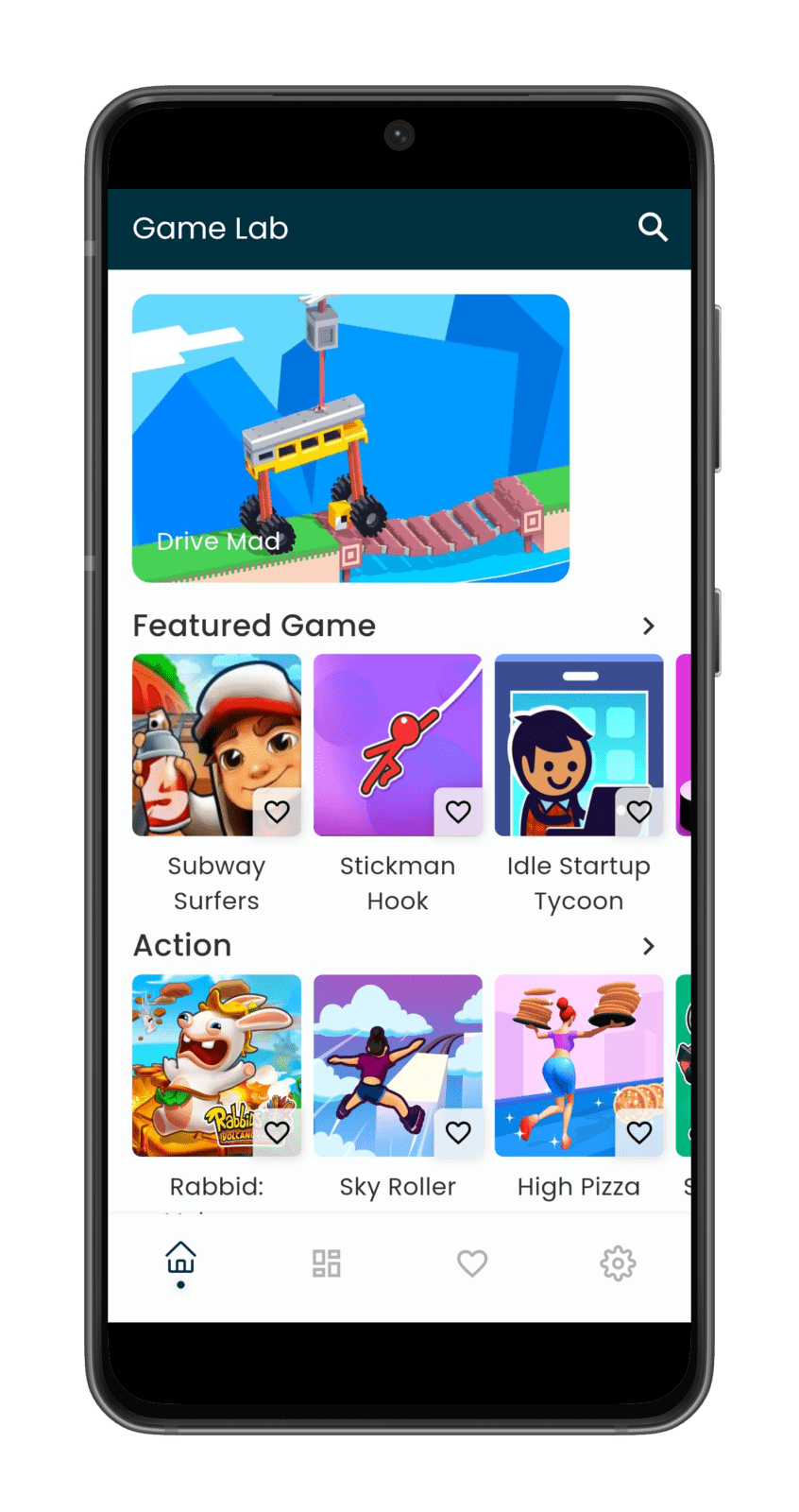
The limitations matter. Google Play labels Game Lab as containing ads, and the current listing does not promise that its full catalog works offline. Treat it as an online-first hub unless a specific game or app screen says otherwise. It is not available on iPhone, and one hub cannot replace a full standalone game when you want long campaigns, advanced graphics, or guaranteed saved progress.
Use Game Lab when: you have Android, enjoy short casual games, want several genres in one place, and prefer one installation over many separate game apps.
Install Game Lab from its verified Google Play listing and browse the catalog from one app.
How to reduce the games already using your storage
Switching methods does not remove old games automatically. Review what is installed before adding a hub. Android’s current app-management guide distinguishes three useful actions:
- Uninstall removes the app and its associated data when possible.
- Archive removes the app while retaining its icon and personal data for a later download; availability varies.
- Disable is mainly for apps that cannot be removed. It stops the app running or updating but keeps it on the phone.
Start with games you no longer play. Before uninstalling, check whether progress is saved to an account or only on the device. Clearing an app’s storage is different from clearing its cache and may erase progress or sign-in state.
A quick decision checklist
- Want no app installation? Try Instant Games on a supported phone or use a reputable browser game site.
- Want one organized catalog? Use an all-in-one hub such as Game Lab.
- Need offline play? Verify the exact offline label or documentation before traveling.
- Want deeper games and reliable progress? A standalone game may still be the better choice.
- Concerned about ads or privacy? Read the current store details and the provider’s privacy policy before installing.
Frequently asked questions
Can you play Android games without downloading anything?
Yes, on select phones through Android Instant Games or through browser-based games. The game still transfers resources over the internet and may store temporary data, so “no installation” does not mean zero data use or zero local storage.
Does Game Lab install every game separately?
No. Its current Google Play listing says Game Lab is installed once and the included mini games do not require separate installations. The hub itself still uses storage and its game content may use data or cached files.
Does Game Lab work offline?
The current official listing does not promise offline support for the full catalog. Use an internet connection unless the app identifies a specific game as available offline. Android Instant Games has a separate limited offline-saving feature on supported devices.
Is Game Lab free?
The current Google Play listing describes Game Lab as free and also labels it as containing ads. Store details can change, so check the listing displayed in your country before installation.
Can iPhone users install Game Lab?
No. Game Lab currently has a verified Google Play listing but no active App Store listing. This guide’s Game Lab instructions are for Android.