

To delete screenshots on iPhone, open Photos → Collections → Media Types → Screenshots, tap Select, choose the unwanted captures, then tap the trash button and confirm. First keep or export anything you still need. If iCloud Photos is enabled, deleting from the library also removes the items from your other synced devices.
The important distinction is between an unwanted image and useful information stored inside it. A screenshot of an expired offer may be clutter; a reference you still need is not. This guide starts with that decision, then covers selective deletion and an optional Swipli review workflow.
1. Open the screenshot collection, not the whole camera roll
Apple’s current screenshot guide gives this route: open Photos, tap Collections, scroll to Media Types, and choose Screenshots. Its media-type guide explains how those collections group the library. Labels and placement can vary with your installed iOS version.
Review the images in that collection before selecting a large batch. Do not assume that every reference image you saved from a message or website will appear there; if a keeper is missing, look for it in the library too.
2. Decide what the screenshot still does for you
Use these prompts as a personal review checklist, not an automatic rule. When unsure, leave the capture in place until you know where its useful information lives.
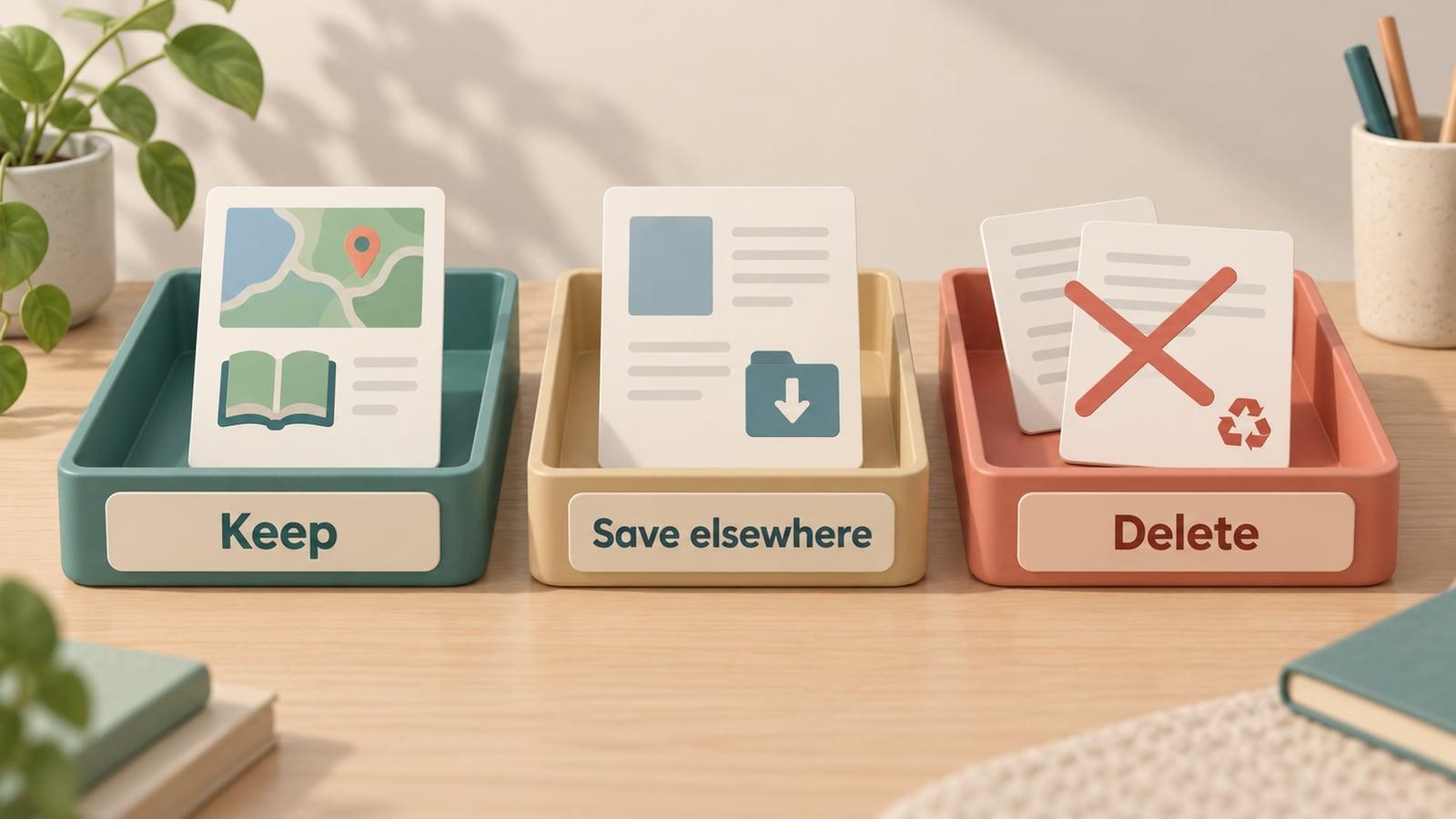
- Keep for active use: a reference, address or instruction you expect to reopen soon. An upcoming trip detail should not be removed merely because it is old.
- Save elsewhere: a record you want to retain but do not need in your photo library. Export the image and verify the saved file before deleting the Photos copy.
- Act on it first: a reminder to book, read or buy something. Put the action into the tool you actually use, and confirm it is there before removing the capture.
- Delete when obsolete: an accidental capture, a repeated image, or a reference you no longer need and can confidently discard.
The illustration represents three human decisions: keep the image, save a verified copy elsewhere, or delete it. It is not a feature or automatic classification screen in any app.
3. Export keepers if they should leave Photos
Creating an album called “Keep” helps you find images, but it does not create an independent exported file. Do not treat that album as an exemption from selecting and deleting the same library items. Apple’s album guide describes albums as a way to organize photos.
For screenshots you want to retain outside the photo library, Apple’s current download and export instructions describe selecting images, tapping Share, choosing Export Unmodified Originals, selecting a destination in Files, and tapping Save. Choose the destination deliberately; Files may open to iCloud Drive by default.
- Export a small group of the keepers rather than the entire backlog.
- Open the saved files at the destination—not just the original images in Photos.
- Check that the important text and details are readable and that all intended items arrived.
- Only then decide whether to remove the corresponding library copies.
This is an export acceptance checklist, not a promise about a particular backup service. Choose storage appropriate for the information; avoid casually sharing screenshots that contain private details.
4. Delete only the screenshots you have reviewed
Return to Screenshots, tap Select, and choose the unwanted captures. Check the selection, tap the trash button, then confirm deletion. Apple’s deletion instructions cover selecting multiple items and confirming the removal.
Do not use Select All simply because you put keepers in another album. If you want every screenshot gone from Photos, first verify that none is still needed there and that any intended exports succeeded. A small completed batch is preferable to a rushed selection you cannot check.
iCloud caution: library deletion is synchronized when you use iCloud Photos. Seeing the same image on an iPad or Mac in that synced library is not evidence of an independent safety copy. Do not delete library items if your real goal is merely to reduce local storage while keeping the library intact.
5. Use Swipli if you also want to review monthly clutter
Swipli, made by Zappira, offers a different review rhythm: media grouped by month, a right swipe to keep, a left swipe to mark for deletion, undo, and a final review where you can unselect items before deleting. Those capabilities are described in its current official listings.
It fits when screenshot cleanup leads you to other unwanted images from the same month. For a screenshot-only batch, Photos’ Screenshots collection is the direct route. This guide does not verify a screenshot-only filter in Swipli or claim that it can decide which information matters to you.
This fresh product illustration uses Swipli’s real deletion-review screen and official icon. Its sample grid shows ordinary photos—not an invented screenshot-only interface—and demonstrates the final review checkpoint.
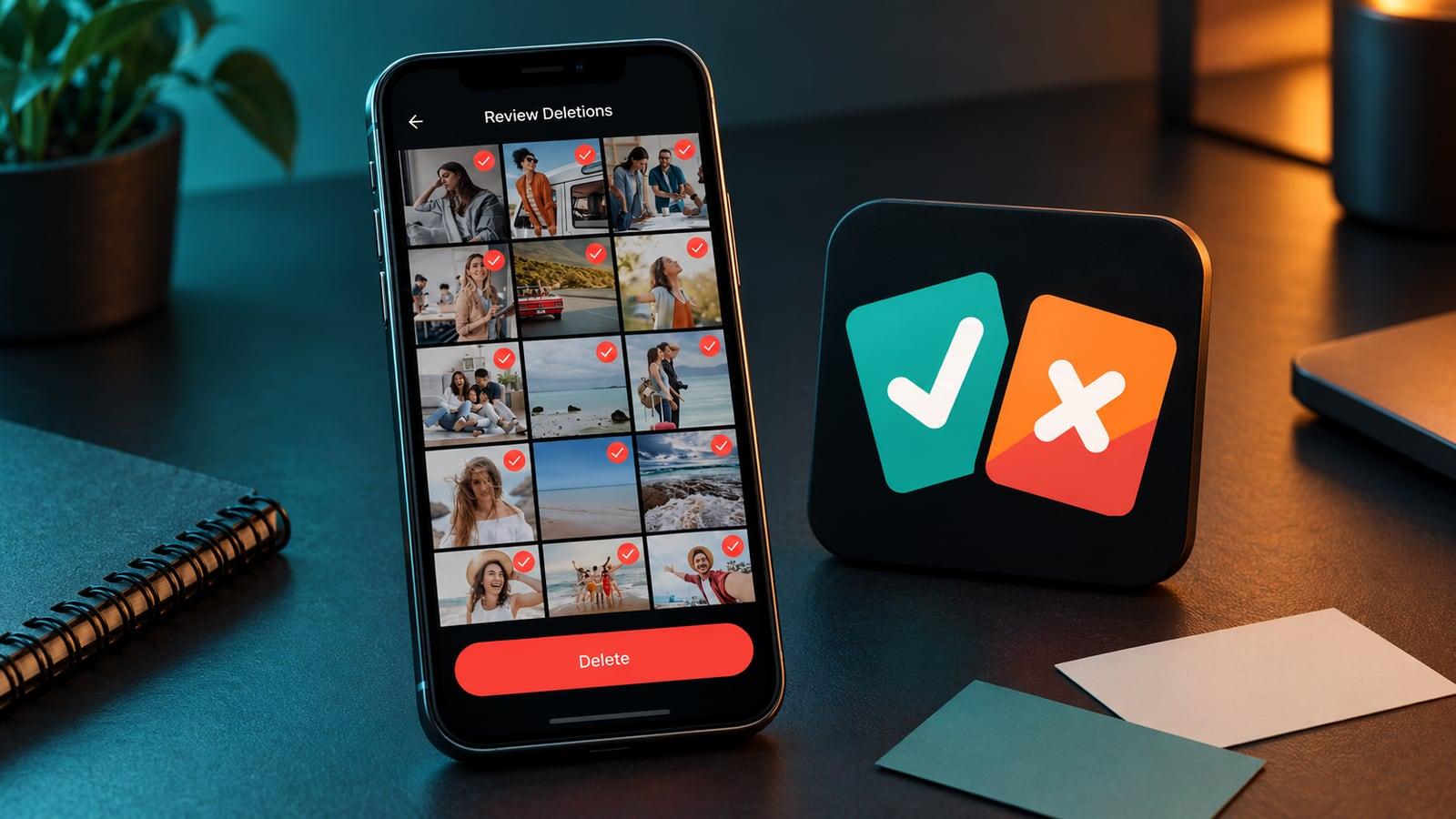
Keep uncertain screenshots during review and inspect every deletion candidate before confirming. Undo and a final review help you reconsider a choice, but they do not replace verifying exported keepers. For a wider library session, see our safe iPhone photo-cleanup guide.
If monthly keep/delete review suits you, check Swipli’s current official listing. The steps above are for iPhone; Swipli also has a verified Android listing.
6. Recover a mistaken deletion before it becomes permanent
Apple says deleted library items remain in Recently Deleted for 30 days unless permanently removed earlier. Its current recovery guide gives this route: Photos → Collections → Recently Deleted, below Utilities. Tap View Album and unlock if prompted, tap Select, choose the items, then use the More menu and Recover.
Leave that recovery window in place while you check the cleanup. Permanently deleting items removes that option. This is a fallback for mistakes, not a substitute for reviewing the batch first.
Will deleting screenshots instantly fix a storage warning?
Do not assume a fixed amount or timing. Review Settings → General → iPhone Storage to see what is using space; Apple’s deletion guide documents that check. Screenshot cleanup removes unwanted library content, but it is not a guarantee that screenshots are your main storage problem.
How do I stop the backlog returning?
Give a screenshot a destination when you use it: keep an active reference, export a record, turn a reminder into an action, or remove an obsolete capture. Review the new batch regularly instead of waiting until every image feels like a mystery. For the broader choice between native tools and manual review, see Swipli versus Apple Photos.