
Choose Scany if you want a dedicated capture-and-export workflow, Google Drive if your coursework already lives in a Drive folder, or Apple Preview if you have it on your iPhone and want a direct PDF scan. All three can help turn paper into a document. The useful finish line is the complete, readable file your course accepts—not simply a successful camera capture.
These apps to scan homework to PDF are for work you have already completed on paper. This is not a roundup of answer generators, handwriting solvers or tools that submit assignments for you. We compare current documented workflows, not hands-on speed or accuracy tests.
Three homework-scanning workflows at a glance
| App / platform | Good fit | Check first |
|---|---|---|
| Scany iOS and Android | Review and order pages, then export/share PDF | You still choose and verify the submission destination |
| Google Drive iOS and Android | Capture pages into your existing Drive filing workflow | Use the right account; a sharing link is not automatically a file upload |
| Apple Preview iPhone where Preview is available | Combine camera scans into one PDF you can save and edit | This iPhone route is not an Android option |
Start with your assignment instructions: permitted file type, size limit, naming rule, page count and submission route. A scanner cannot override those requirements. In Canvas, for example, the official student upload guide distinguishes file uploads from institution-enabled Google Drive submissions.
1. Scany: prepare the pages, then export the assignment
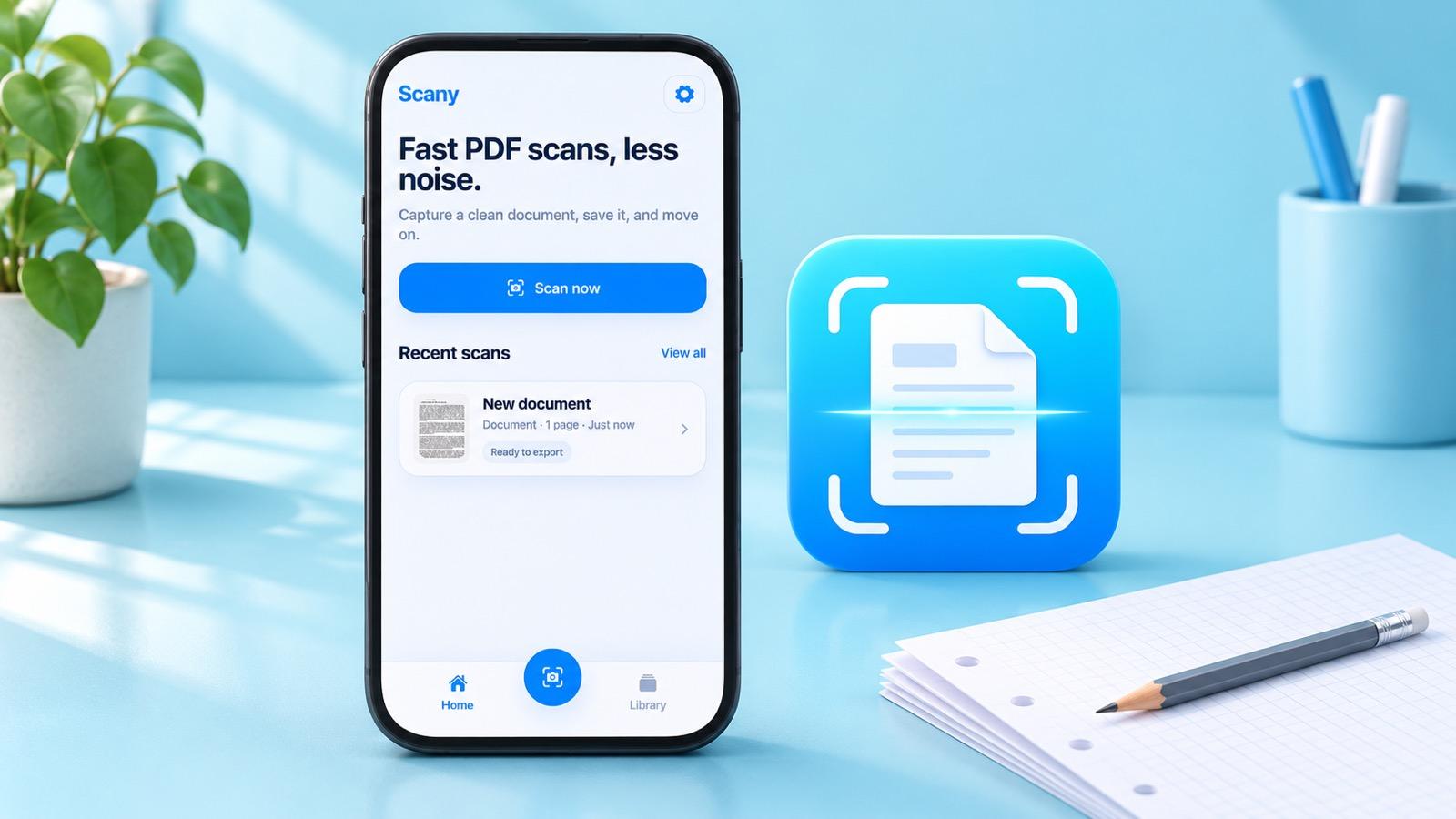
Scany is Zappira’s document scanner for iOS and Android. Its current official materials describe camera capture or photo import, page cropping and review, adding/removing/reordering pages, folders and tags, and PDF export/share. That fits a student who wants to assemble one assignment before deciding where to send it.
A useful routine is one document per assignment: capture the pages, check the order against the paper stack, then export the PDF. Choose a recognizable filename following your course’s rule. Folders and tags can help separate courses, but they do not replace checking the file you actually upload.
The product illustration below uses Scany’s real home screen and official icon. It is not a homework-recognition screen or evidence that the app checks answers.
Limitation: OCR, editable handwriting conversion and automatic learning-platform submission are not verified for Scany. A PDF can preserve the appearance of a handwritten answer without understanding it. You remain responsible for missing pages, pale marks and the final upload.
If a dedicated scan-and-export workflow fits your device, check the current official Scany listing:
2. Google Drive: keep the scan in the right course folder
Google documents scanning in Drive on both Android and iPhone/iPad. The workflow includes adding pages, adjusting the scan, naming it and choosing a Drive location. The Android instructions explicitly offer PDF or JPG; choose PDF when that is the requested format.
On Android, Google’s current guide starts with the camera button. On iOS it starts with Add, then Scan or the camera icon. Capture all pages in the same session and check the destination account and folder before saving.
Choose Drive when it already matches your school’s approved filing or submission workflow. The tradeoff is account and destination management: the file in a personal Drive folder may not be the one your course expects. Do not assume a pasted sharing URL fulfills a file-upload assignment, or change a file to public access just to make a link work.
3. Apple Preview: a direct iPhone PDF route
Apple’s current Preview guide for iPhone documents Scan Documents on the start screen. Capture each page, finish the scan, and Preview combines the pages into a single PDF you can save and edit. This is a useful starting point if Preview is available on the iPhone you already use.
Choose it for an occasional paper assignment when you do not need a separate scanner library. Find the saved PDF again before opening the course’s upload control. This comparison covers the documented iPhone route, not Preview availability on Android or a promise that every older iPhone has the same app.
There is no need to install another scanner if your existing route produces the required file reliably. For a broader feature comparison, our PDF scanner roundup covers other scanning priorities.
The homework check that matters more than the app
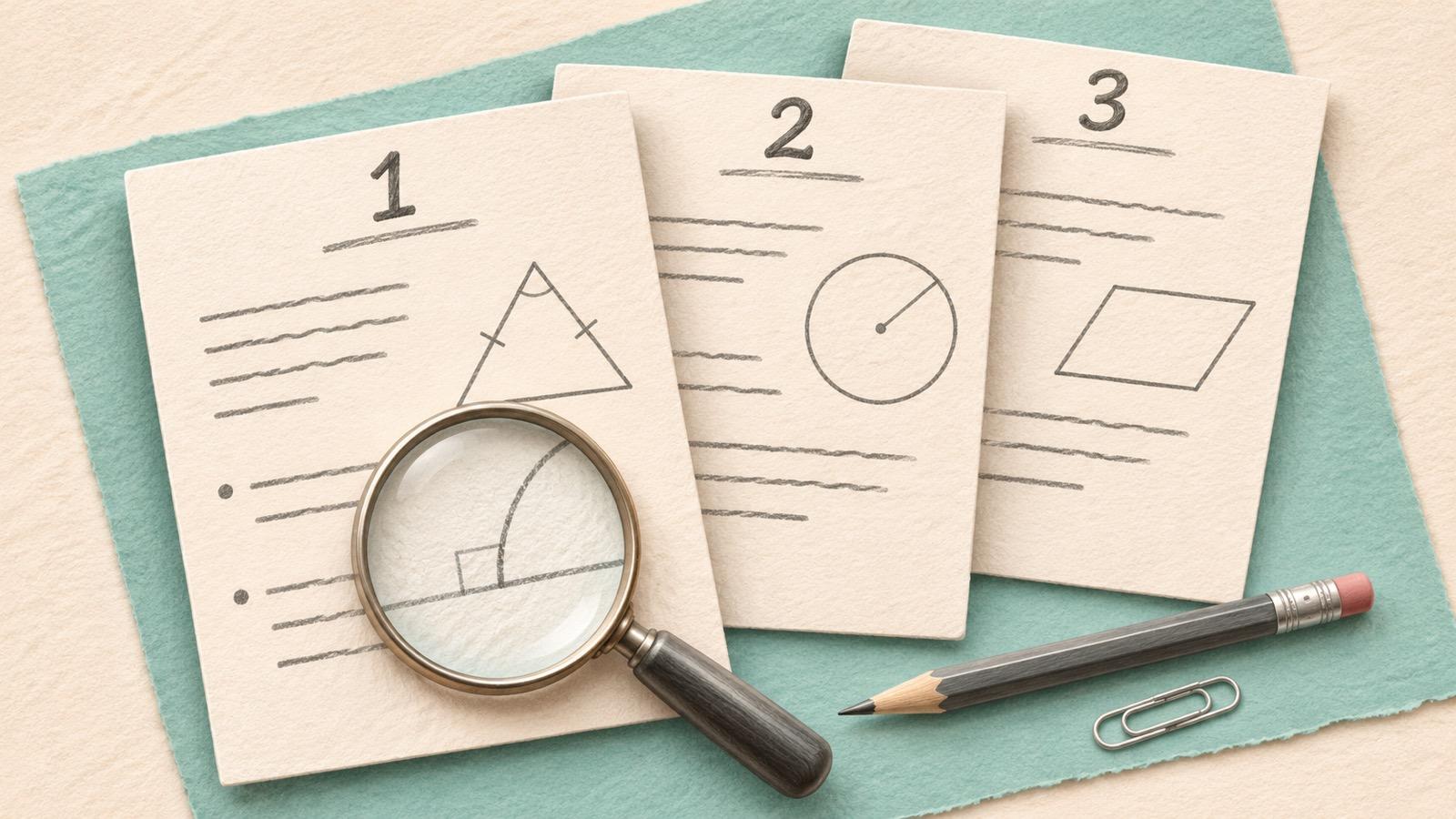
Open the exported or saved PDF—not just the camera preview—and compare it with your paper stack. The editorial illustration represents that inspection; it is not an app interface or a claim that any app automatically performs these checks.
- Count every page: include backs of sheets when they contain work. Check first, middle and last pages, not only the cover.
- Follow the reading order: keep question continuations and diagrams beside the relevant answer. Remove accidental duplicates only after confirming they are duplicates.
- Inspect fine marks: zoom into a pale pencil line, decimal point, minus sign, exponent or diagram label. Retake an unclear page; do not rely on guessed text recognition.
- Check the edges and orientation: make sure a crop has not cut off question numbers or work in the margins. Rotate sideways pages before saving the final copy.
- Check the actual file: confirm its PDF format and size against the assignment rules. If you change export quality, reopen the result and inspect the small marks again.
For example, a three-page calculation can look fine as thumbnails while a faint minus sign disappears in the final output. A more searchable document is not necessarily a more faithful copy of your working. Preserve the marks the teacher needs to read rather than treating OCR as a substitute for inspection.
Finish in the submission portal, not the scanning app
Select the saved file through the route your course permits, then complete the portal’s submission action. If the course offers an approved Drive integration, use its instructions rather than inventing a sharing-link workaround. The University of Manchester’s student guidance also emphasizes checking the format and completing Submit assignment.
After submission, check the portal’s status and inspect the attached file or preview when available. A PDF on your phone is not proof that the portal received it. Keep the original paper and your submitted copy until you know the work was received and no correction is needed.
Pick the workflow you can verify: Scany for a dedicated page-to-PDF process, Drive for an existing course-folder routine, or Preview for a direct supported iPhone route. Whichever you choose, complete pages, readable working and a confirmed submission matter more than switching scanners.