

The best swipe photo cleaner apps for iPhone suit different routines: Swipli for reviewing a month with keep/delete gestures and a final check, Swipewipe for monthly cleanup with bookmarks for uncertain photos, and Slidebox for combining deletion with album sorting. Choose the routine you want to finish—not the longest feature list.
This shortlist compares documented workflows in the current official listings, checked on 2 October 2026. It is an editorial fit assessment, not a hands-on speed or duplicate-detection test. All three have an accessible iPhone listing; check the current store page for compatibility and purchase options before installing.
Quick comparison: what should a session accomplish?
| App | Best fit | Documented strength | Decision trade-off |
|---|---|---|---|
| Swipli | Finish a month of keep/delete decisions | Monthly groups, undo, and review before deletion | Choose it for culling; this recommendation is not based on an album-filing workflow |
| Swipewipe | Review by month without deciding every photo immediately | Bookmarks, monthly swiping, and OnThisDay prompts | Decide-later bookmarks still need a later review |
| Slidebox | Delete unwanted shots and file the keepers | Swipe-to-trash, one-tap albums, favorites, and undo | Album decisions add another task to a cleanup session |
The recommendations below use three criteria: how you choose a manageable batch, what you do with uncertainty, and whether your end result is fewer photos or a more organized library. None of these apps can decide which memories matter to you.
1. Swipli: best for focused monthly keep/delete review
Swipli is a strong fit when “clean up my photos” means working through a defined month instead of browsing an endless camera roll. Its official listing describes swiping left to select a photo for deletion, right to keep it, undoing a swipe, and reviewing selected photos before deleting them. Swipli is made by Zappira, which publishes this article; that relationship does not change the comparison criteria.
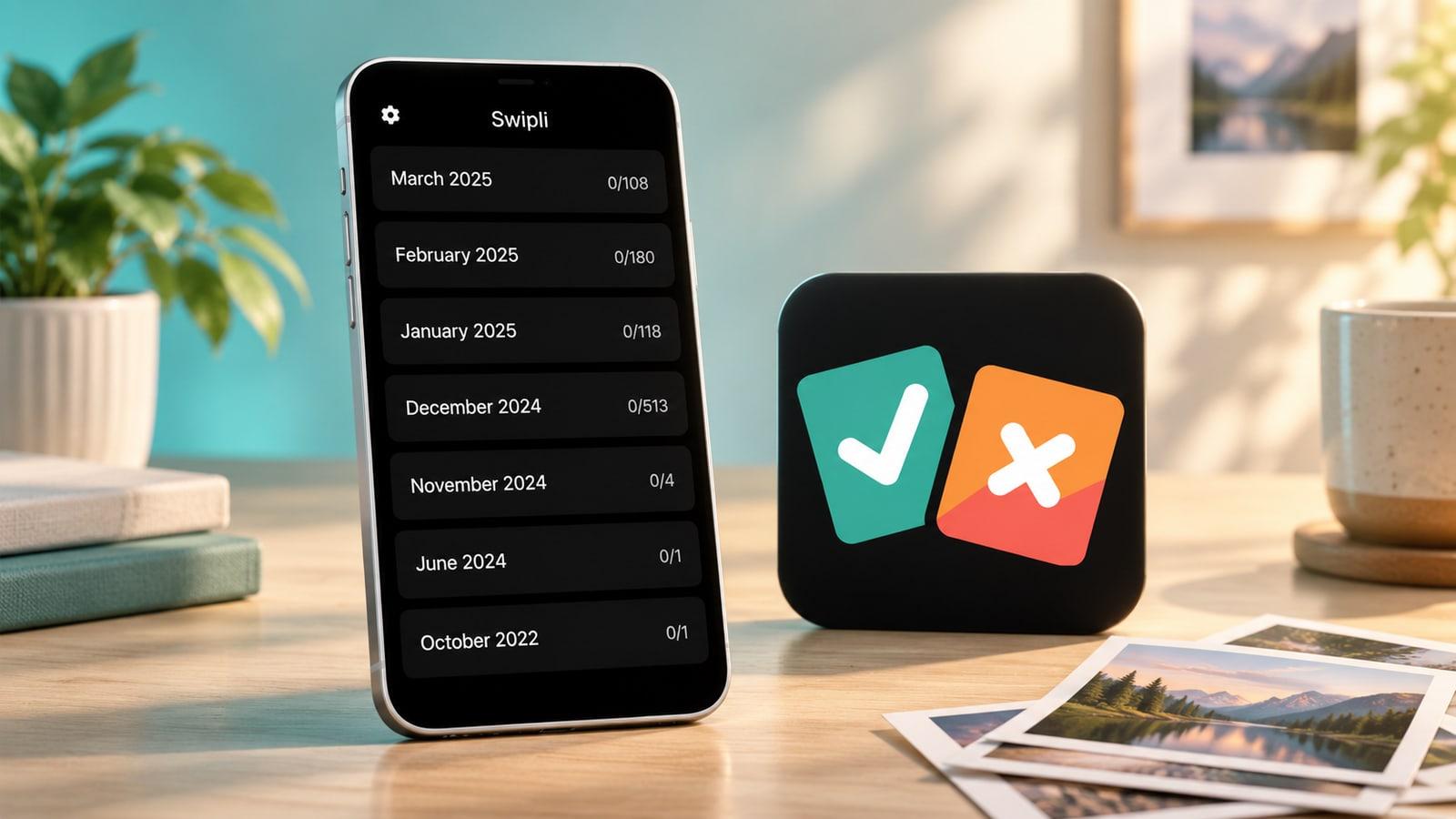
The iOS version history also documents duplicate and similarity checks. That is a reason to explore the current app, not evidence that every near-duplicate will be identified correctly. Inspect suggestions yourself, especially when several similar shots capture different expressions or moments. The official App Store listing is the source for these features.
Choose Swipli if: you want a bounded review batch and a final opportunity to reconsider selected deletions. If your priority is filing keepers into named albums during the same session, Slidebox’s explicitly documented album workflow is more directly aligned. For the built-in alternative, see our Swipli versus Apple Photos comparison.
For that month-by-month review workflow, explore Swipli on your device. The iPhone version is compared here; an official Android listing is also available.
2. Swipewipe: best for a decide-later review habit
Swipewipe is another month-based swipe option, but its bookmarks make the recommendation different. Its current official listing describes bookmarking photos you want to decide on later, alongside keep/delete swiping. It also describes OnThisDay prompts and a photo map.

Choose Swipewipe if: uncertainty is what stops your cleanup sessions. A bookmark provides a separate decision queue rather than forcing every questionable image into “keep” or “delete” immediately. The trade-off is practical: postponing a decision is only useful if you return to that queue. Set a follow-up review time instead of letting it become another backlog.
Its extra discovery prompts may suit a recurring photo-review habit. If you simply want to complete one month and stop, compare the basic review flow first; more prompts do not automatically mean a better fit.
3. Slidebox: best for sorting the photos you keep
Slidebox is the clearest match when you want an organized library after cleanup. Its official listing documents swipe deletion, one-tap album sorting, favorites, similar-photo comparison, and undo. Its iOS FAQ explains that albums correspond to albums in Apple Photos and that marking a photo as trash is separate from confirming its deletion.
Choose Slidebox if: your “keepers” need destinations such as Family, Travel, or Work References. For example, after rejecting an unusable trip photo, you can sort the useful one into a trip album. That answers a different problem from merely reducing the total photo count.
The trade-off is decision load. If naming and choosing albums slows you down, separate culling from filing rather than expecting to finish both at once. Album organization is not a backup, and the app’s documented Photos integration means deletion deserves the same care as deleting in Photos itself.
Try a small pilot before committing your whole library
Use one quiet month or another small batch for a trial session. Pick the app by the task below, then check its behavior with expendable test photos before reviewing important memories:
- Test a correction. Select a disposable photo, then reverse that action or remove it from the deletion queue. Learn the distinction between a swipe and confirmed deletion.
- Test uncertainty. Choose a photo you are unsure about. Can you defer it in a way you will actually revisit? If not, keep it for now.
- Check the end state. For a culling task, inspect the selected deletion batch. For an organizing task, verify that a keeper appears in the intended Photos album.
- Choose by friction. Continue with the app whose next action is obvious to you. Do not infer speed, safety, or storage savings from a polished preview image.
What to check before confirming deletion
With iCloud Photos enabled, deleting a photo on one device also deletes it on other devices signed into the same Apple Account. Apple says deleted items normally remain in Recently Deleted for 30 days; permanently deleting them removes that recovery option. Make a separate backup of irreplaceable photos before a large cleanup. These rules come from Apple’s current deletion guidance.
If your only problem is duplicate copies, check Apple Photos’ built-in duplicate-merging option before adding another app. Swipe review is more useful when the decision is subjective: which shot to keep, whether an old screenshot still matters, or how to organize a useful image. Our iPhone photo-cleanup guide covers the broader safety workflow.
The short recommendation
Start with Swipli for a defined month of keep/delete review, Swipewipe when decide-later bookmarks help you keep moving, or Slidebox when filing keepers into albums is part of the job. A small, completed session is a better decision signal than a long list of cleanup features.