
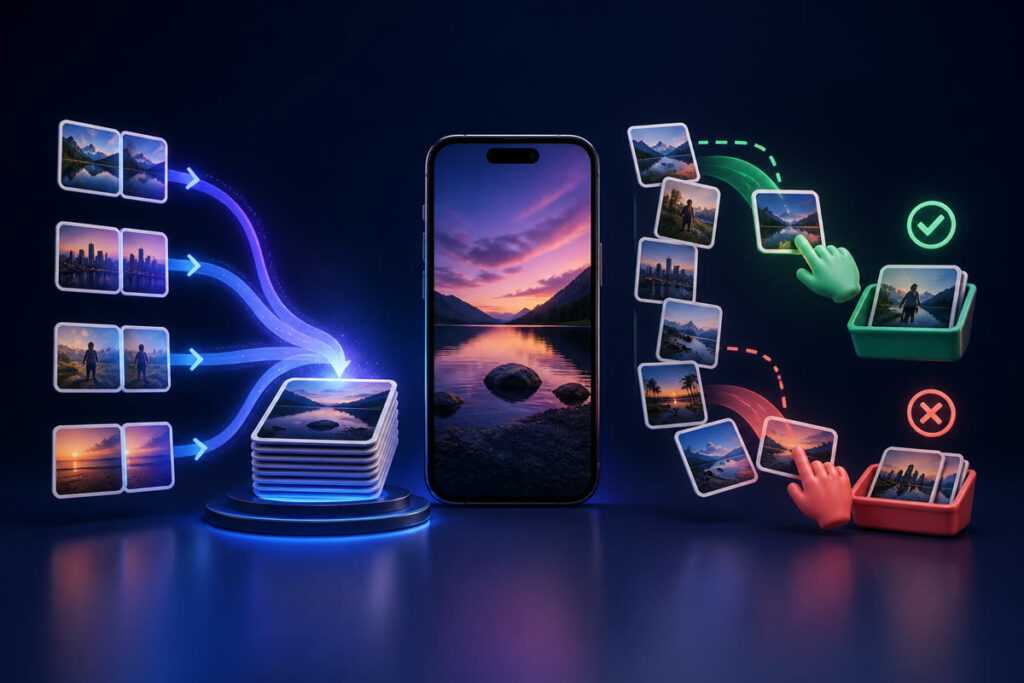
Apple Photos is better for merging true duplicates automatically; Swipli is better for deciding which ordinary photos you personally want to keep. The most effective cleanup is to use both in sequence: merge duplicates in Apple Photos first, then review the remaining library month by month in Swipli.
Swipli vs Apple Photos at a glance
| Decision | Apple Photos | Swipli | Better choice |
|---|---|---|---|
| Find true duplicates | Automatically identifies duplicate sets and offers Merge | Built around manual keep-or-delete decisions | Apple Photos |
| Remove blurry, outdated, or unwanted photos | Manual selection in the library | Swipe-based review organized by month | Swipli |
| Install another app | No | Yes | Apple Photos |
| Review before deleting | Select items or duplicate sets before deletion | Undo a swipe and review marked deletions before confirming | Swipli for deliberate review |
| Recovery window | Deleted items stay in Recently Deleted for 30 days | Deletion ultimately uses the device photo library; check Recently Deleted before emptying it | Both rely on the iPhone safety net |
| Android option | No | Yes | Swipli |
This comparison uses current official Apple guidance and Swipli’s current product and store listings. It does not assume that every unwanted photo is a duplicate: screenshots, near-identical bursts, old receipts, and poor shots often require a human decision.
Where Apple Photos is stronger
Apple Photos has the clear advantage when the problem is exact or near-exact duplicate files. On a current iPhone, open Photos, tap Collections, scroll to Utilities, and choose Duplicates. You can merge one set, several selected sets, or all detected sets.
Apple says merging keeps one copy with the highest image quality and relevant data, while the other copies move to Recently Deleted. That is safer and faster than comparing obvious duplicates one by one. It is also built into iOS, so there is nothing else to install.
- Best for: duplicate photos and videos that iOS has already grouped.
- Main advantage: automatic detection and a purpose-built Merge action.
- Main limitation: it does not decide whether a unique photo is useful, flattering, readable, or worth keeping.
If the Duplicates collection is missing, that does not necessarily mean something is broken. Apple says the phone must finish indexing the library and find duplicates; detection runs while the iPhone is locked and connected to power and can take time. See Apple’s current guides to deleting and merging photos and finding a missing Duplicates collection.
Where Swipli is stronger
Swipli is designed for the part Apple’s duplicate detector cannot solve: personal judgment. Its current listing organizes the library by month, shows photos one at a time, and lets you swipe right to keep or left to mark for deletion. An undo control corrects a mistaken swipe, and a final review screen lets you unselect photos before confirming deletion.
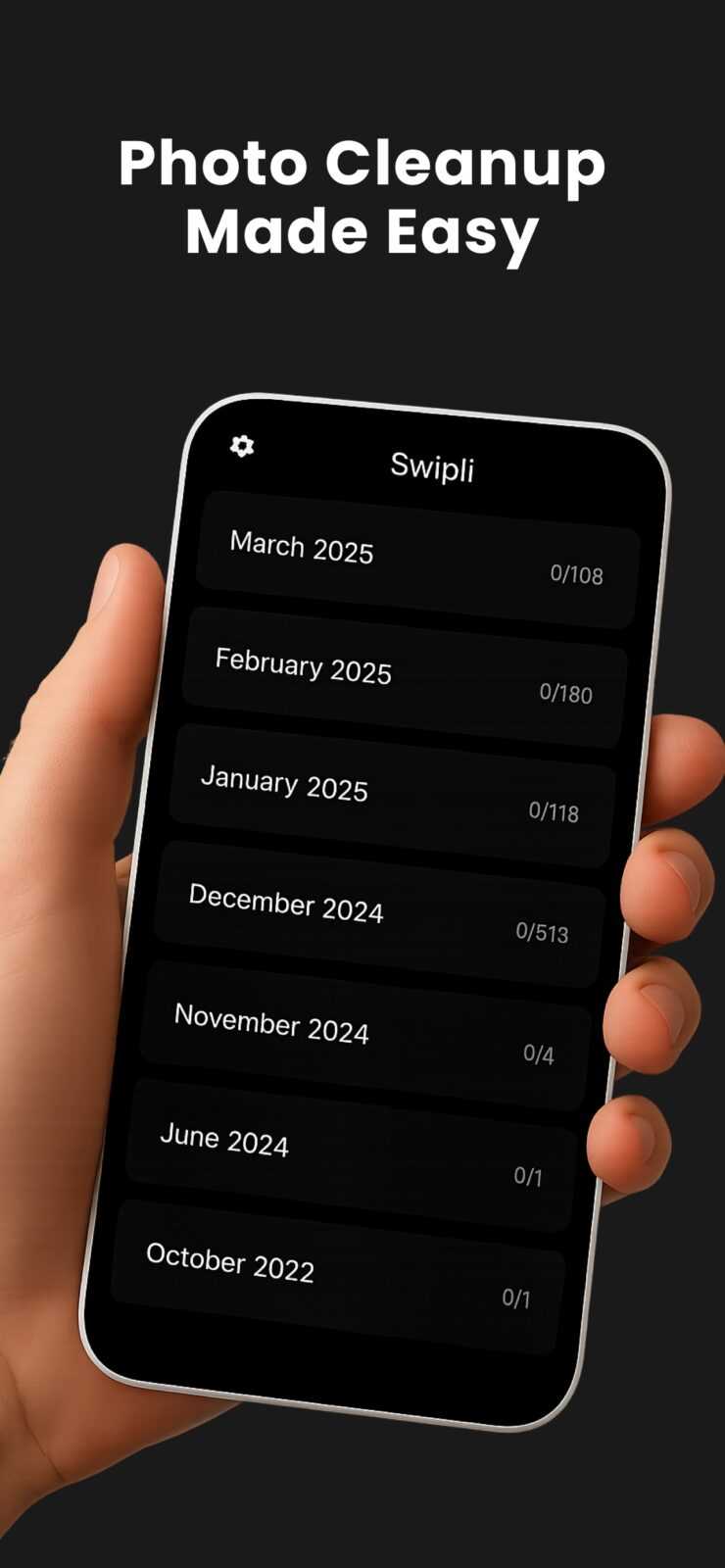
Zappira, which publishes this site, develops Swipli. That relationship does not change the practical split: Swipli is not the better tool for Apple’s automatic duplicate-merging job. It is the better fit when you want a focused review of unique photos, screenshots, forgotten images, and near-duplicates that still require a choice.
- Best for: subjective clutter that an automatic duplicate detector cannot judge.
- Main advantage: a simple keep/delete rhythm, undo, and final review.
- Main limitation: manual review takes time, and the result is only as careful as your decisions.
You can review Swipli’s current photo-cleanup workflow before choosing your platform.
The safest way to use both
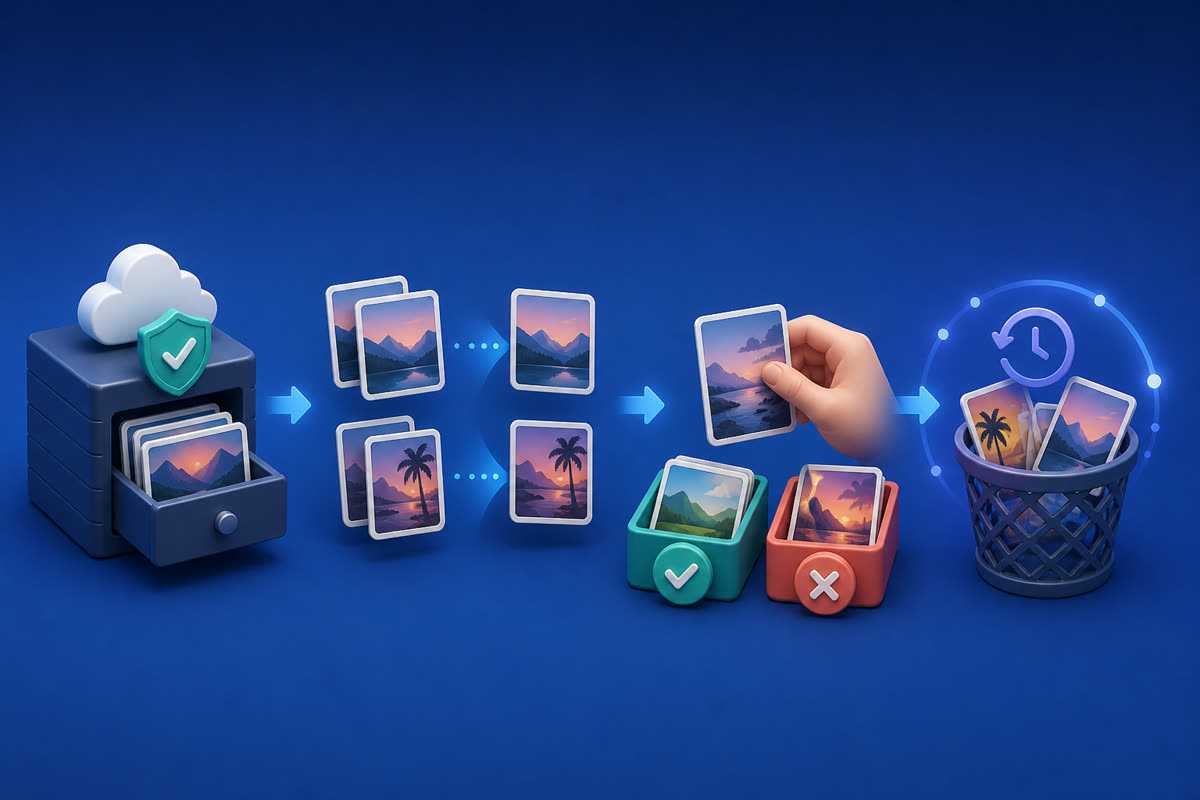
A two-stage cleanup reduces repetitive work without handing every decision to automation.
- Protect the photos you cannot replace. Confirm that your intended backup or sync setup is current before a large cleanup.
- Let iPhone finish duplicate detection. If Duplicates is not visible, leave the phone locked and connected to power, then check again later.
- Merge obvious duplicate sets in Apple Photos. Open each set when the images are important rather than using Select All without review.
- Open Swipli and choose a manageable month. Starting with one month keeps the session focused and makes accidental choices easier to notice.
- Swipe slowly through uncertain photos. Use undo immediately when a gesture does not match your decision.
- Inspect Swipli’s final deletion review. Remove any photo you want to keep from the deletion selection before confirming.
- Keep the Recently Deleted safety window. Apple says deleted photos remain recoverable there for 30 days. Do not empty it early until you are sure the cleanup is correct.
If you use iCloud Photos, remember that deleting a photo on one signed-in device deletes it on the other devices using the same Apple Account. The 30-day recovery window helps, but it is not a substitute for checking important photos before deletion.
Privacy and pricing details that matter
Swipli’s product page and store copy state that photo cleanup happens on the device and that photos are not uploaded to a cloud server for processing. That is a useful, narrow claim about the photo workflow; it should not be read as “the app collects no data.” Apple’s App Store privacy label currently lists data used to track you, while Google Play labels the Android app as containing ads and in-app purchases. The App Store also lists in-app purchases.
Store disclosures and app business models can change. Check the privacy and in-app-purchase sections on the official listing for your platform before installing. For Apple Photos, review your iCloud Photos setting because it determines whether deletion synchronizes across devices.
Which photo cleaner should you choose?
- Choose Apple Photos alone if duplicate files are the main problem and you do not want another app.
- Choose Swipli if the library is full of unique but unwanted photos and you prefer reviewing them one by one or month by month.
- Use both if you have a large mixed library: let Apple handle duplicate sets, then use Swipli for the decisions only you can make.
- Pause before deleting if the library contains work files, family photos, or records without a verified backup.
For most cluttered iPhone libraries, “both” is the honest answer. Apple Photos removes the mechanical duplicate work; Swipli provides a deliberate review flow for everything that remains.
Frequently asked questions
Does Swipli automatically find duplicate photos?
Its current official materials emphasize manual swipe-based review, undo, month organization, and a final deletion review. Use Apple Photos’ Duplicates collection when automatic duplicate grouping is the job you need.
Is Swipli better than Apple Photos?
It is better for a focused keep-or-delete review of ordinary library clutter. Apple Photos is better for built-in duplicate detection and merging. Neither is best at both jobs.
Can I recover photos after cleanup?
Apple says deleted photos and videos stay in Recently Deleted for 30 days before permanent deletion. Check that collection promptly if you removed something by mistake, and do not empty it early during a large cleanup.