

To find forgotten subscriptions on your iPhone, start in Settings > your name > Subscriptions. That screen shows subscriptions billed by Apple and subscriptions purchased through apps using the App Store. It does not show every recurring payment. If a company bills you directly, you must find that charge in your email, bank or card statement, payment account, or carrier bill and cancel it with the provider.
The most reliable audit uses both routes: check Apple’s list first, then check everywhere else you pay. Use the steps below to build one complete list and cancel each unwanted renewal through the company that actually bills it.
Start with the correct cancellation route
| Where you find the subscription | Who bills it | Where to cancel |
|---|---|---|
| Settings > your name > Subscriptions | Apple | Open the subscription in that screen and use Cancel Subscription. |
| An Apple receipt tied to another Apple Account | Apple | Sign in with the Apple Account shown on the receipt, then open Subscriptions. |
| A provider receipt or a merchant name on a financial statement | The provider | Use the provider’s app, website, account settings, or support channel. |
| Your wireless carrier bill | Your carrier or another provider | Contact the carrier or provider named on the bill. |
This distinction matters: downloading an app on an iPhone does not mean Apple handles its subscription billing. Follow the billing trail rather than the device on which you use the service.
How to find Apple-billed subscriptions on iPhone
- Open the Settings app.
- Tap your name at the top.
- Tap Subscriptions.
- Review the active subscriptions. Tap any item to see its available plan and cancellation options.
- Also review expired subscriptions so you can recognize services you used before and avoid signing up twice under another account.
These steps follow Apple’s current subscription cancellation instructions. Remember that this is an Apple-billing list, not a universal list of every membership or recurring bill connected with your life.
Check Apple purchase history when the name is unfamiliar
If you remember a charge but not the app, check the purchase history associated with your Apple Account:
- Open the App Store.
- Tap your photo or the sign-in button at the top of the screen.
- Tap Purchase History. Depending on your iPhone version, you may first see Apps & Purchase History.
- Search by the item name or amount. To look farther back, tap the date filter such as Last 90 Days and choose a wider range.
Apple says purchase history can include apps, in-app purchases, subscriptions, and other Apple media purchases. Several items can also be grouped into one bill, so the total on a statement may not match one subscription by itself. See Apple’s purchase-history guide for the latest menu wording.
How to cancel an Apple-billed subscription
- Go to Settings > your name > Subscriptions.
- Tap the active subscription you no longer want.
- Scroll if necessary, then tap Cancel Subscription or the cancellation option Apple displays.
- Follow the onscreen confirmation steps.
- Return to the subscription details and confirm that it now shows an expiration message instead of a future renewal.
If there is no Cancel button, or Apple shows an expiration message in red, Apple says the subscription is already canceled. For a free or discounted trial you do not want to renew, Apple advises canceling at least 24 hours before the trial ends.
What to do when a subscription is missing
A missing subscription usually means you are looking in the wrong billing account or the provider billed you outside Apple. Work through these checks in order:
- Search your email for Apple receipts. Apple specifically recommends searching for “receipt from Apple” or “invoice from Apple.” Open the receipt and check which Apple Account appears on it.
- Check another Apple Account you use. Sign in to the account shown on the receipt, then repeat the Settings > name > Subscriptions steps.
- Ask the family member named on the receipt. Apple says you cannot cancel a family member’s subscription from your own account; that person must cancel it.
- Look for a provider receipt. Search your inbox for the service name together with words such as subscription, renewal, receipt, invoice, trial, or membership.
- Check the payment source. Review bank and credit-card statements, payment-service activity, and your wireless carrier bill. Identify the merchant that actually billed the charge.
- Cancel with that provider. Use the company’s website or app account settings, or contact its support team. Apple’s subscription screen cannot cancel a charge that Apple did not bill.
If a statement shows apple.com/bill, use Apple’s purchase history to identify the item. Apple’s apple.com/bill help page also links to charge details and subscription cancellation.
Build a complete list of recurring payments
Do not stop after the Apple screen. A practical subscription audit should cover enough history to catch both monthly and less-frequent renewals. Check each of these places:
- Apple Subscriptions and Apple purchase history
- Email receipts, invoices, trial confirmations, and renewal notices
- Bank and credit-card statements
- Automatic or recurring payments in any payment services you use
- Wireless carrier bills
- Subscriptions paid by an employer or family member, if you need to know who controls cancellation
For every recurring payment you keep, record the service name, amount, billing frequency, next renewal date, payment method, account email, and cancellation route. That last field prevents the common dead end of finding a service but not knowing whether Apple, a card, a payment service, or a carrier controls it.
How to avoid forgotten renewals in the future
- Turn on Apple renewal receipts. In Settings > your name > Subscriptions, enable Renewal Receipt Emails if that option appears.
- Record a subscription the day you start it. Include the billing route and account email, not just the service name.
- Set the reminder before the renewal date. Leave enough time to decide, sign in, and complete the provider’s cancellation flow.
- Review the list on a repeating schedule. Compare it with statements so new or changed charges do not stay outside your tracker.
- Keep cancellation confirmations. Save the email or confirmation screen until you have verified that future billing stopped.
Where Subpli fits
Subpli is useful after you identify your subscriptions. Its official App Store listing says you can add subscriptions with details such as the plan name, cost, notes, and custom icons; choose renewal reminders 1 day, 3 days, or 1 week before the next billing cycle; and view monthly and yearly totals plus upcoming charges. Guest Mode is available if you want to use the app without creating an account.
Subpli should be treated as an organizer and reminder, not as a replacement for Apple’s or a provider’s cancellation process. Its listing does not claim automatic subscription discovery or cancellation on your behalf. You still need to identify each charge and cancel it with the company that bills it.
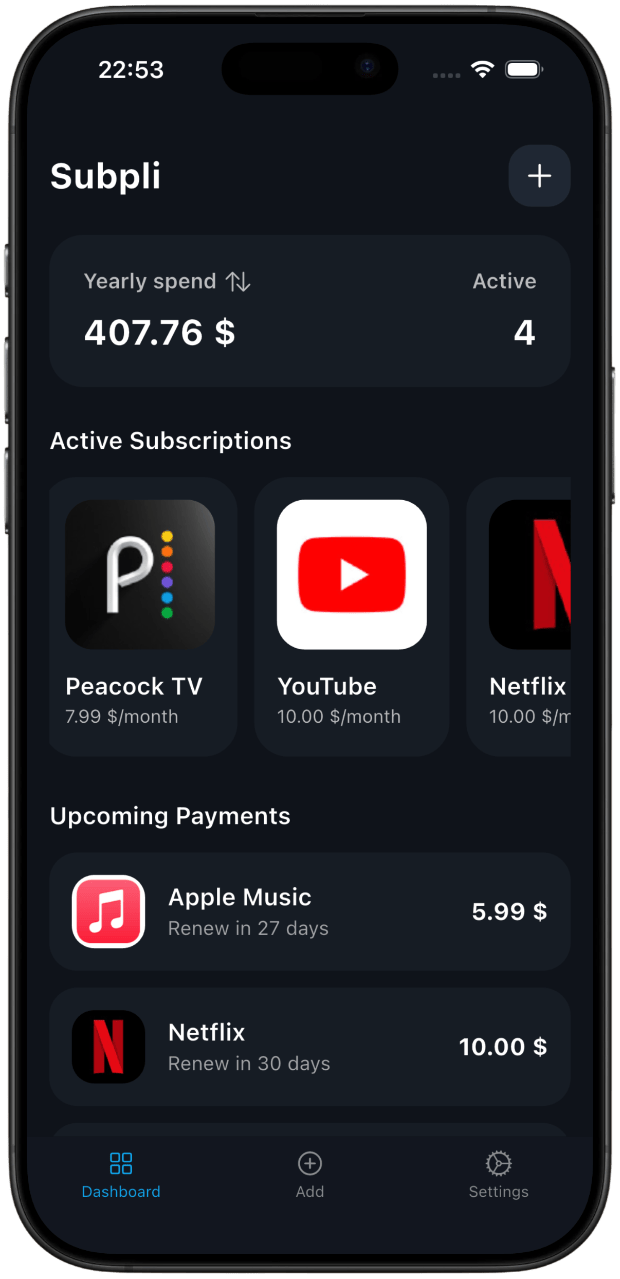
You can see how Subpli organizes renewal reminders and subscription totals, or download Subpli from the official App Store listing when you are ready to keep the subscriptions from this audit in one place.
Frequently asked questions
Can iPhone Settings show every subscription I pay for?
No. The Subscriptions screen covers subscriptions billed by Apple and subscriptions purchased through apps using the App Store. A service billed directly by its provider, a payment service, or a carrier must be found and canceled through that billing source.
Why is there no Cancel Subscription button?
Apple says that if there is no Cancel button or the page shows an expiration message in red, the subscription is already canceled. If the item is missing entirely, check the receipt for the Apple Account used or contact the provider shown on your statement.
Can I cancel a family member’s Apple subscription?
No. Apple says the family member whose Apple Account appears on the receipt must follow the cancellation steps from that account.